
How to Create Your Invoice as an Independent Contractor

Our accounting team processes payments every two weeks as long as your invoice is submitted within two days after the pay period ends.
Use this guide to create your invoice correctly and avoid delays.
1. Turn off your TimeCamp timer
Invoices aren’t billable. If your timer is still running, you’re basically charging for filling out the invoice.
2. Identify the pay period
Visit payroll schedule.
Each pay period spans 14 days, starting on a Friday and ending on a Thursday.
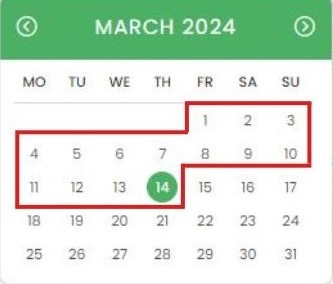
Examples:
- Feb 16 – Feb 29, 2025.
- Mar 1 – Mar 14, 2025.
Confirm the exact dates before you do anything else.
3. Don’t create your invoice during the pay period
If the pay period ends on March 14, wait until March 15 to make your invoice. Creating it early risks missing entries that haven’t synced.
4. Filter your TimeCamp report
1- Log into TimeCamp.
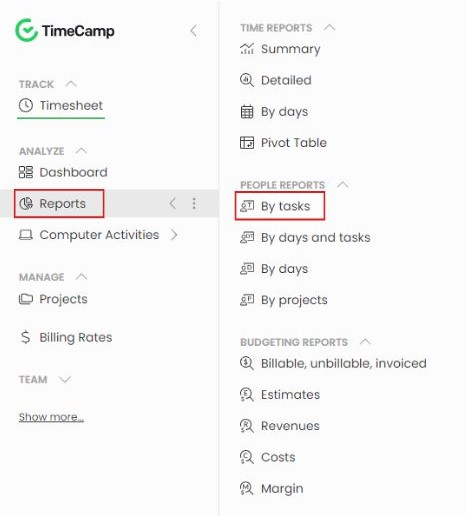
2- From the left navigation, hover over Reports → choose People by tasks.
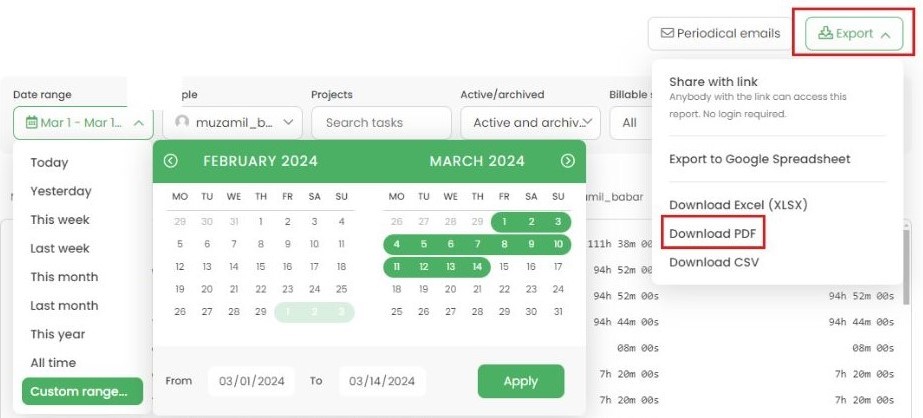
3- Under Date range, choose Custom range and enter the full pay period.
4- Click Apply.
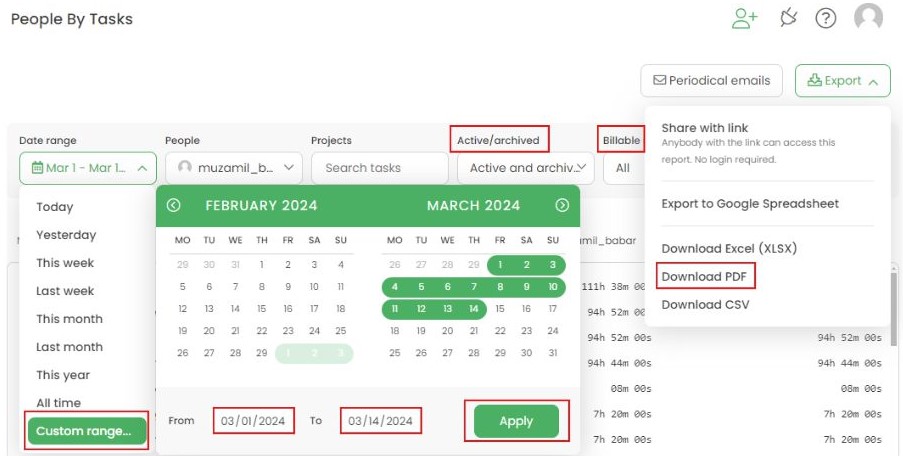
5- Under People, select your name.
6- Under Projects, select All Projects.
7- Under Active/archived, select Active and archived tasks.
8- Under Billable status, choose All.
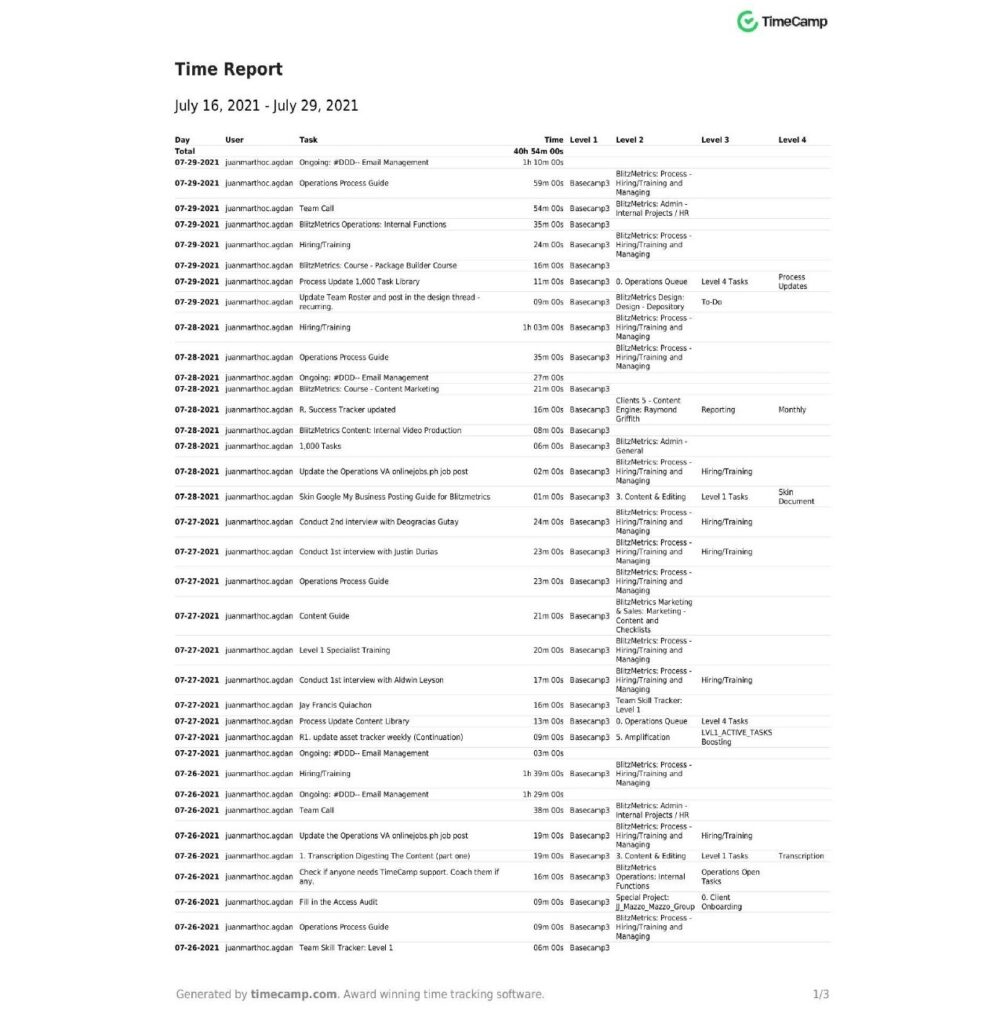
9- Note your total hours.
This number will go in your invoice.
5. Make sure no time is missing a task
Search the page with CTRL+F / CMD+F for:
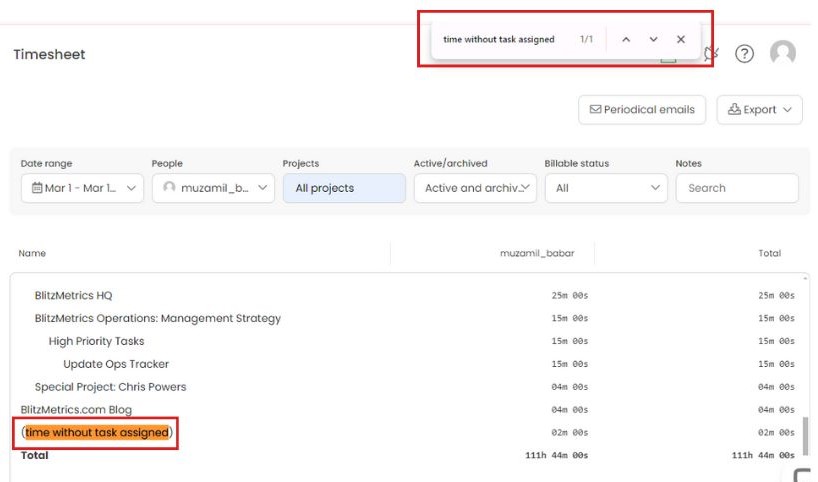
- No results? Move on.
- Found one? Fix it before continuing:
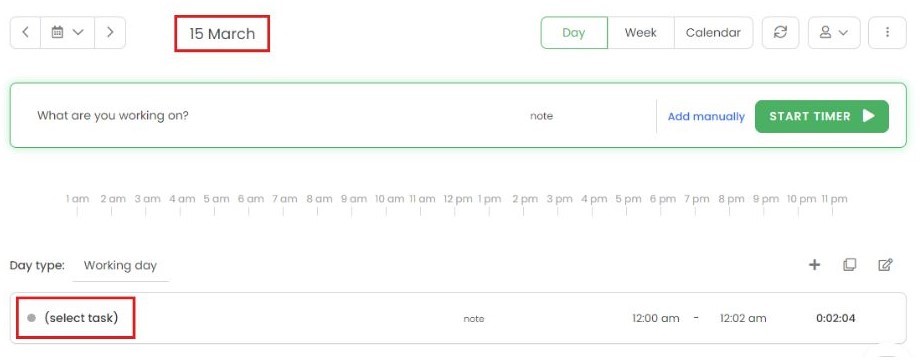
How to fix unassigned time
- Identify the date of the bad entry.
- Open TimeCamp in a new tab.
- Navigate to that date.
- Assign the correct task to anything showing “select task”.
- Refresh your report tab.
- Repeat until the report is clean.
6. Download the report as PDF
Hover over Export → Download PDF.
7. Convert the PDF to JPG
- Visit any PDF-to-JPG converter (e.g., “Convert PDF to JPG”).
- Upload your report.
- Choose Convert entire pages.
- Download and unzip the JPG images.
8. Convert the PDF to JPG
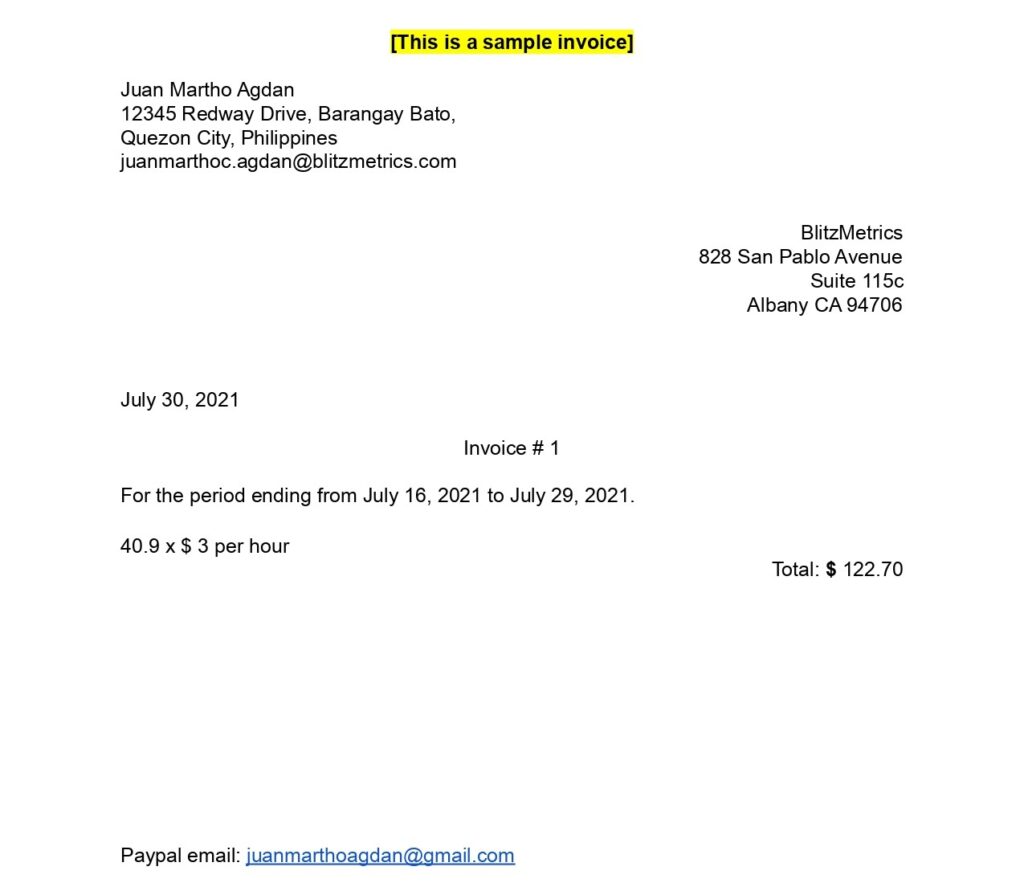
- Open the Invoice Template.
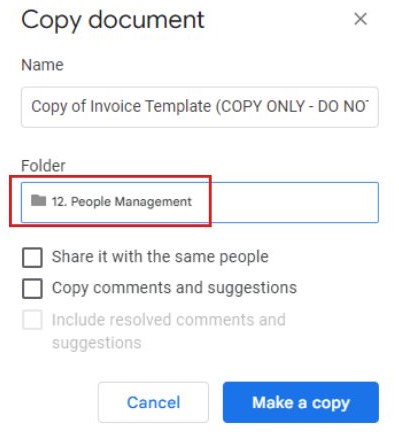
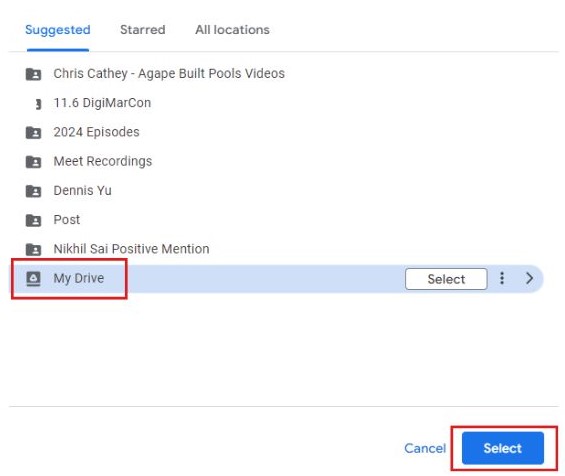
- Go to File → Make a copy.
- Save it to My Drive.
- Close the original to avoid editing the wrong one and crying later.
9. Complete the first page of your invoice
Rename the file using this format:
Invoice_{Name}_{Month Day, Year Start}_{Month Day, Year End}
Examples:
- Invoice_Juan Dela Cruz_February 16, 2024_February 29, 2024
- Invoice_Jane Doe_March 1, 2024_March 14, 2024
Make a copy of the invoice template.

Update the fields:
- Your name, address, and email.
- Invoice date and invoice number.
- Hours worked (convert minutes to decimals: 15 mins = 0.25).
- Your hourly rate.
- Total amount for the period.
Payment Details
If NOT paid through Upwork:
- Write “No” beside “Pay Through Upwork:”
- Enter your bank name, routing number, account number, etc.
If paid through Upwork:
- Write “Yes”
- Delete the bank account fields.
Final Check
Remove all yellow highlights.
10. Add your TimeCamp JPGs
- Scroll to page 2.
- Click the empty area.
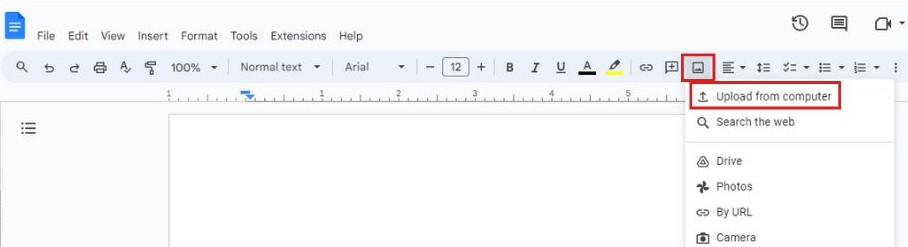
- Insert → Image → Upload from computer.
- Select all JPGs you unzipped earlier.
11. Download your invoice as a PDF
Go to File → Download → PDF.
12. Email your invoice
Send an email to accounting@blitzmetrics.com, CC your team lead, using the invoice file name as the subject line.
If you’re paid on Upwork, wait for hours to be approved, then add them.
13. Include your MAA (Metrics, Analysis, Action)
Every invoice must include an MAA section. This is your mini “doctor’s report” about your work.

Metrics
List tasks completed and only tasks that passed QA and were published.
Also include your cost per completed item:
Analysis
Explain what the numbers mean.
Real insights only.
Action
What did you do or what will you do to improve results based on your analysis?
This section is how we track progress and help you grow.
Payment methods
We don’t use PayPal or Wise.
Use one of these:
1. Zelle (Preferred)
- Provide U.S. phone or email.
- Instant, no fees.
2. Venmo
- Provide your username.
3. ACH (U.S. banks only)
- Routing + account number.
Backup Options
If you can’t receive payments, you may designate someone you trust to receive it for you. Many contractors do this.
Last Resort: Upwork
We don’t recommend it:
- Client pays +10%.
- You lose 10% to Upwork fees.
- Basically, everyone cries.
Only use Upwork if absolutely necessary.