
How to Get the Transcript of a YouTube Video

In our 4 stage Content Factory process, transcripts are the bridge between producing video and turning it into scalable written assets.
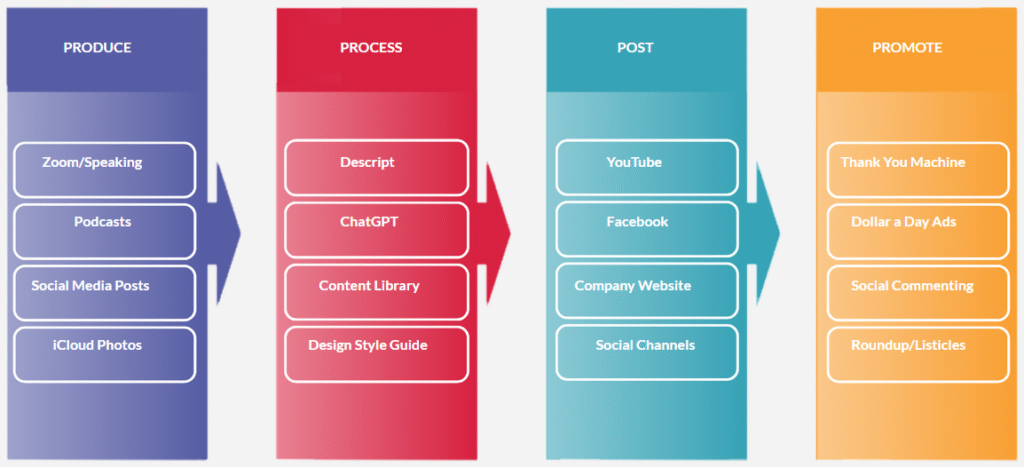
After we produce content through Zoom calls, podcasts, or speaking engagements, we process it using tools like Descript and ChatGPT.
The transcript is what allows us to repurpose those videos into articles, social posts, website pages, email newsletters, and SEO-driven content.
Without the transcript, the content stays locked inside the video.
With it, one recording can become dozens of searchable, reusable assets.
If you want to turn YouTube videos into blog posts, research notes, or authority-building articles, the first step is getting the transcript.
Fortunately, YouTube makes this easy, and you don’t need special software to do it.
Using YouTube’s built-in transcript feature
The fastest way to get a transcript is directly from YouTube.
Open the video you want.
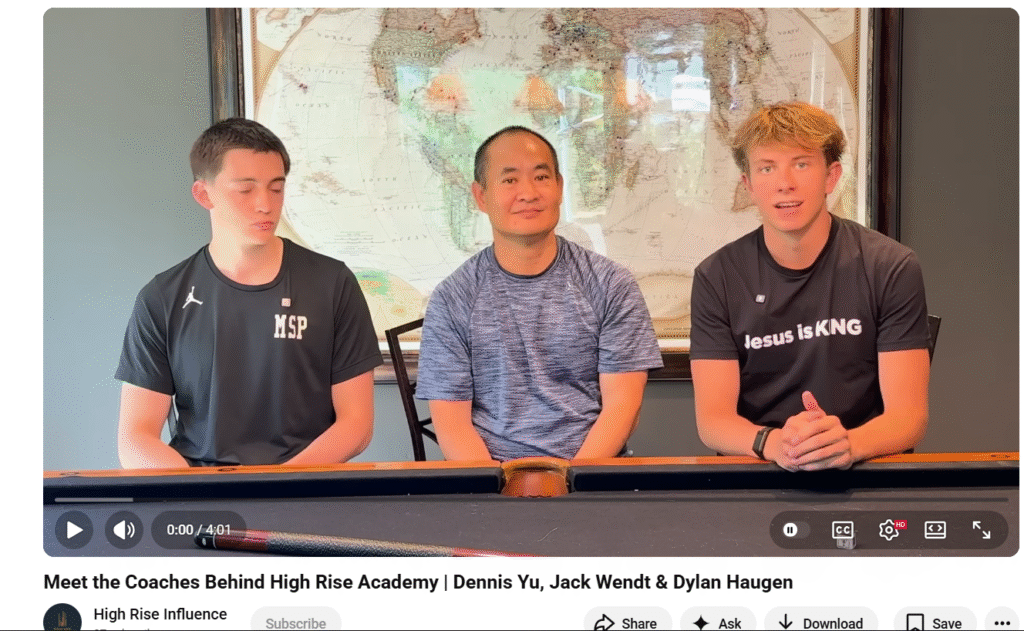
Below the video player, look for the three-dot menu.
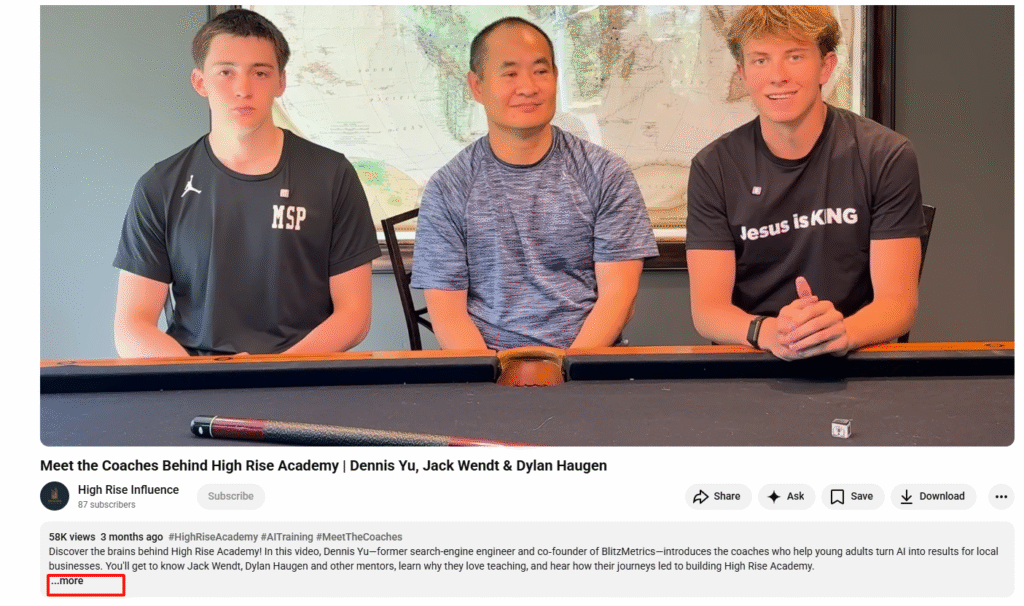
Click those three dots and select “Show transcript.”
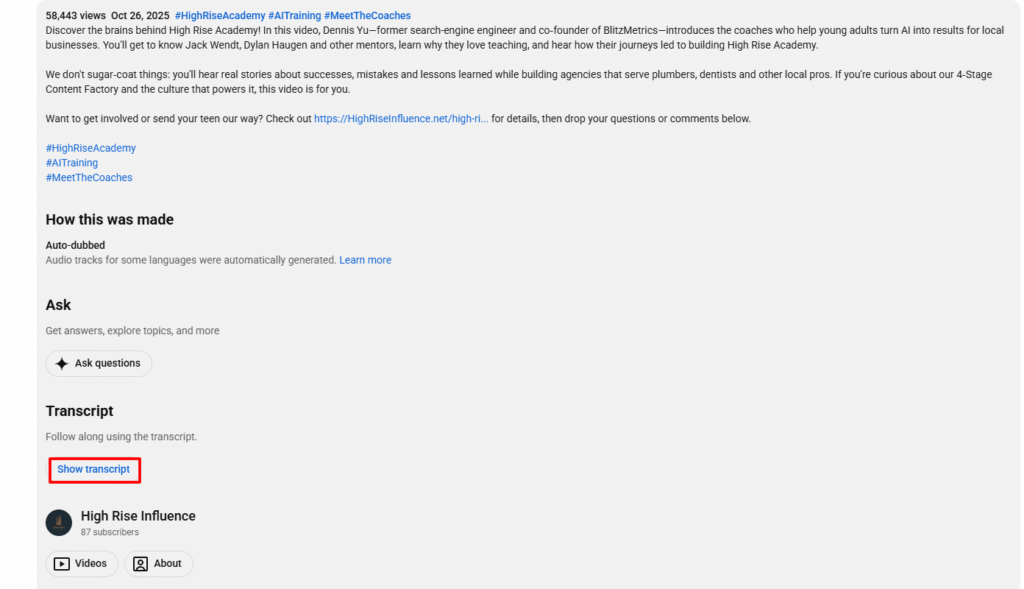
A transcript panel will appear on the right side of the screen.
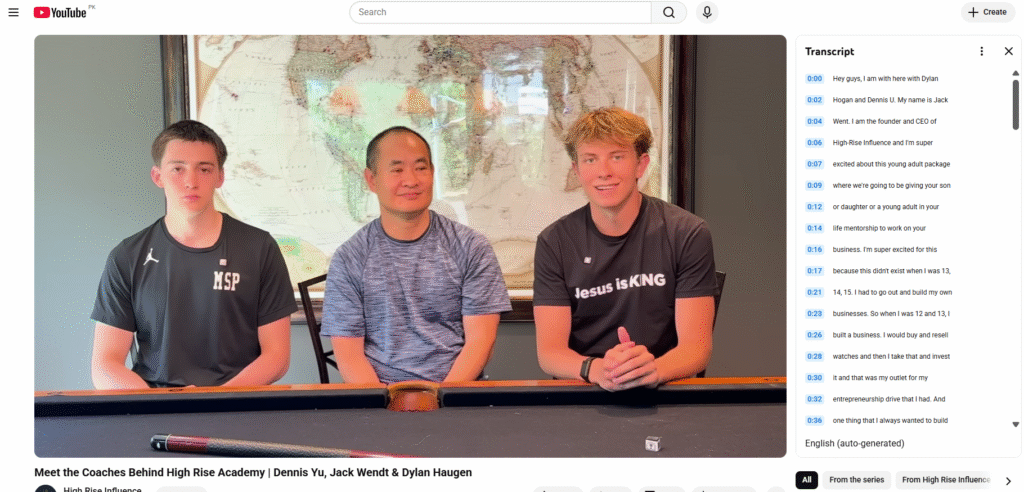
You can scroll through the text and copy it directly into a Google Doc, Word document, or any text editor.
YouTube automatically generates captions for most videos, which makes this method quick and reliable in many cases.
Removing timestamps
When the transcript appears, it usually includes timestamps before each line of text.
In some cases, you can click the three dots inside the transcript window and toggle the timestamps off.
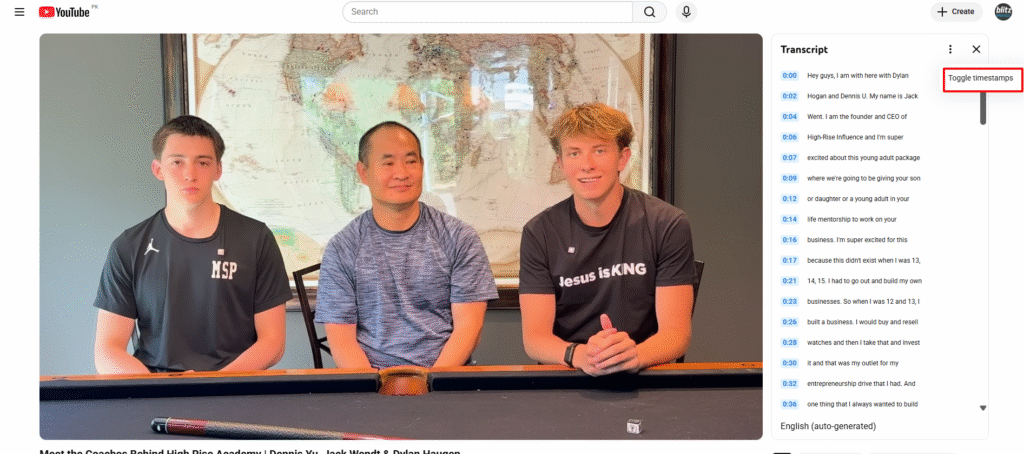
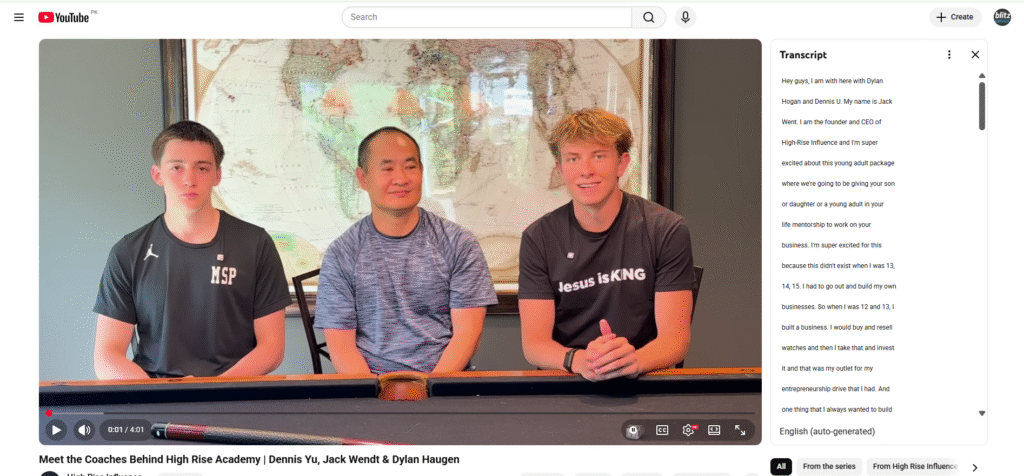
If that option is not available, paste the transcript into a document and remove the timestamps using a simple find-and-replace function.
Once cleaned, you’ll have plain text that is much easier to edit, summarize, or restructure into a polished article.
Getting transcripts on mobile
If you are using the YouTube mobile app, the steps are slightly different.
Open the video and tap the title or description area to expand it.
Scroll down until you see the “Show transcript” option.
Tapping it will display the transcript within the app, where you can read and manually copy the text.
When a transcript is not available
Sometimes the “Show transcript” option does not appear.
This typically means the creator disabled captions or YouTube did not generate them automatically.
In that case, you can use transcription tools such as Descript, Otter.ai, or Rev.
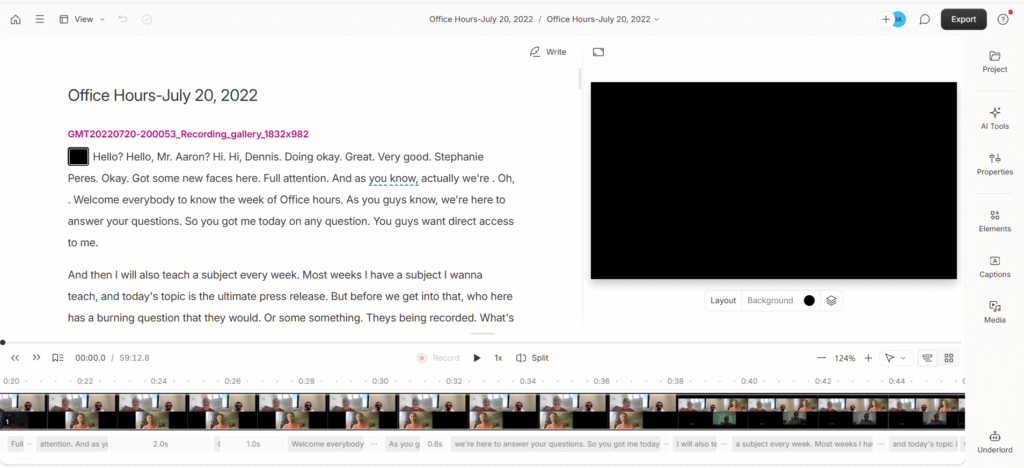
These tools allow you to upload audio and receive a written transcript in return.
If necessary, you can extract the audio from the video and upload it to one of these tools to generate the transcript.
Turning transcripts into content
Once you have the transcript, you can transform it into multiple forms of written content.
You can reshape it into a blog post, extract key insights, create social media posts, or convert it into website copy.
If you use AI tools, you can paste the transcript in and instruct the system to rewrite, summarize, or expand it into structured content.
In the Content Factory framework, this is the processing stage that unlocks leverage.
A single 10-minute video can produce a long-form article, several short-form posts, email content, and SEO-optimized web pages.
Video creates engagement, but transcripts create discoverability.
Getting the transcript is the first move.
What you build from it determines how much authority and visibility you generate from every piece of content you produce.