
How to Clean Up Training Videos, Presentations, and Zoom Clips Using Descript + ChatGPT

If you’re serious about building a real brand—whether you’re a local business owner, agency, or creator—you can’t avoid long-form content.
Webinars. Live presentations. Zoom trainings.
That’s where the real teaching happens.
The problem? Those recordings are usually messy. Crowd chatter, filler phrases, side stories, awkward transitions—all the stuff that makes sense in a room full of people, but drags on YouTube or inside a training library.
This article breaks down the exact system I use to turn a raw live presentation into a clean, focused training asset and a batch of short clips, using Descript and ChatGPT.
The working example: a session Dennis Yu gave at DigiMarCon Silicon Valley on Dollar-a-Day YouTube ads—recorded live while presenting, then edited afterward as if it were a planned training.
Why Long-Form Training Content Still Wins
It’s easy to obsess over short-form content. But the people who buy from you—coaching clients, sponsors, high-ticket service customers—usually come from deeper material:
- A 30–60 minute webinar
- A conference session
- A live training inside your program
Those long videos do the real work: teaching, framing your system, and proving you know what you’re talking about.
The problem isn’t that people won’t watch long videos.
The problem is they won’t sit through 10 minutes of small talk to get to the good stuff.
So the goal is simple:
Keep the substance. Cut the fluff. Turn one talk into many assets.
The Raw Input: Dennis at DigiMarCon Silicon Valley
The video I edited for this workflow was a real talk Dennis gave at DigiMarCon Silicon Valley on Dollar-a-Day YouTube ads—the same framework we use for local service businesses and software companies.
Here’s what made the raw recording messy (and very normal):
- It was recorded as a Zoom clip while he presented in front of a live audience.
- He interacted with the crowd and reacted to the room.
- Some parts were gold for training.
- Other parts made sense live, but didn’t add much for someone watching on YouTube later.
Instead of re-filming a “perfect” studio version, we used that live talk as the master asset—and cleaned it up after the fact.
Step 1: Record Once, Use Everywhere
The first rule is simple: don’t overcomplicate recording.
In this case:
- Dennis spoke live at DigiMarCon.
- He hit record using Zoom.
- The result was a standard screen + camera recording—nothing fancy.
Zoom Clips (or similar tools) make this easy. You can capture:
- Conference sessions
- Internal trainings
- Client workshops
- Coaching calls
All of those can become content after the fact. You don’t need studio time to get started—you just need to hit record when you’re already teaching.
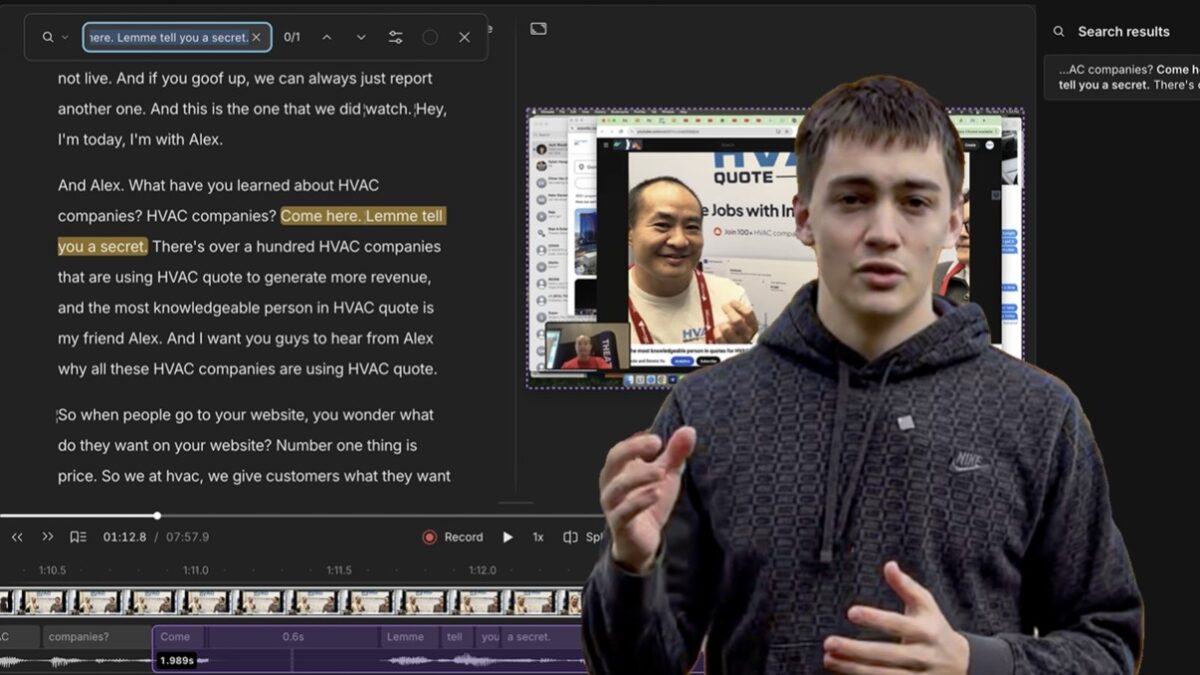
Step 2: Edit Your Video Like a Document in Descript
Once the recording is done, everything moves into Descript.
Descript does two important things at once:
- Transcribes the full video into text.
- Links every word of that text to the exact frame in the video.
That means you can:
- Scroll through the transcript.
- Highlight a sentence or paragraph.
- Hit delete.
- And that portion disappears from the video.
You’re basically editing your video like an article.
For the DigiMarCon talk, this let me move quickly through the session and see the structure:
- Main teaching sections
- Stories and examples
- Side comments to the crowd
- Places where the pacing drifted
I didn’t have to scrub through a timeline guessing where each moment was—I could read it.
Step 3: Let ChatGPT Find the Off-Topic Moments
Here’s where the workflow gets faster.
Instead of manually deciding what to cut purely by feel, I grabbed the entire transcript from Descript (Command + A, Command + C) and dropped it into ChatGPT.
Then I asked it to:
- Find sections that are unrelated to the main training goal.
- Flag moments where the speaker is talking just to keep the pace going.
- Identify spots that might confuse or distract a viewer watching this as a polished training.
ChatGPT responded with specific chunks of text—paragraphs and lines—that were likely non-essential.
From there, the process in Descript is simple:
- Copy a suggested sentence or phrase from ChatGPT.
- Go back to Descript, click inside the transcript.
- Use Command + F and paste that phrase.
- Descript scrolls straight to the exact spot in the video.
- Review it quickly, then cut the whole section if it doesn’t support the main point.
This alone removes a huge amount of “dead air” and side chatter—without watching the entire video in real time.
Why AI Still Needs a Human Editor
You might be thinking:
“Can’t this whole thing be automated?”
I’ve run transcripts through internal tools like Atlas and experimented with having AI not just suggest cuts, but try to decide what to remove on its own.
Here’s the current reality:
- AI is good at spotting obvious filler and unrelated tangents.
- It’s less reliable at knowing where a section actually starts and ends.
- It often suggests cutting a sentence, when in practice the entire surrounding paragraph should go.
In other words, AI can point to the right neighborhood—but it still needs a human to mark the property line.
So the sweet spot right now is:
AI to highlight candidates. Human to make final decisions.
Once that balance is in place, you get the best of both:
- AI speed
- Human judgment
Step 4: Use Descript’s Built-In Cleanup Tools
Descript also has its own AI tools, which are perfect for the “boring but necessary” cleanup:
- Remove filler words (uh, um, you know, like, etc.)
- Studio Sound to improve audio quality
- Basic cutting and rearranging
I recommend this order:
- Run filler word removal first to clean the obvious clutter.
- Apply Studio Sound if the room, mic, or environment wasn’t ideal.
- Then run your ChatGPT-assisted pass for bigger structural cuts.
By the time you’re done, you’ve got a training-ready version of the original talk: clear, focused, and much easier to watch.
Step 5: Turn the Training Into Short Clips
Once the main video is cleaned up, you can flip the process and ask:
“What’s the single most valuable moment here for someone scrolling on social?”
Back inside ChatGPT, using the same transcript, you can ask it to:
- Identify the most relevant segment that stands alone as a clip.
- Summarize the main idea of that segment.
- Suggest a hook or headline based on that moment.
For the DigiMarCon session, that meant pulling out one strong section from a half-hour talk and turning it into a shorter clip we can post on:
- YouTube Shorts
- Instagram Reels
- TikTok
The long video becomes the source.
The short clips become the hooks that send people back to the full training.
The Content Factory Behind This Workflow
This whole process fits perfectly into the Content Factory model we teach:
- Produce
- Record the live talk, webinar, or training (Zoom, in-person, whatever you have).
- Process
- Drop the recording into Descript.
- Copy the transcript into ChatGPT.
- Clean filler words, remove noise, and make bigger context cuts with AI + human review.
- Post
- Upload the polished full training to YouTube, your course platform, or internal library.
- Promote
- Pull out the best segments as short clips.
- Share those across social, email, and inside your programs.
Most people stall in the “Process” stage because they think editing has to be slow and technical.
With this system, a video editor or VA can move from raw recording to publishable asset in a fraction of the time—without sacrificing quality.
How to Train Your Team (or Kids) to Do This
This workflow isn’t just for you as the business owner.
It’s perfect for:
- A teenage son or daughter helping with marketing
- A virtual assistant inside your agency
- An “AI apprentice” inside High Rise Academy
- Any team member who can follow clear steps
They don’t need to be professional video editors. They need to:
- Understand the goal of the video (who it’s for and what it should teach).
- Follow the Descript + ChatGPT steps reliably.
- Ask questions when they’re unsure whether something should stay or go.
Once someone can run this process, every live training, podcast episode, or presentation becomes fuel for your content factory—not just a one-off event.
A Simple Checklist You Can Follow Today
Here’s a condensed version you can hand to your editor or VA:
- Record
- Capture the session in Zoom (or similar) while you teach live.
- Import
- Upload the video into Descript and let it create the transcript.
- Baseline cleanup
- Run “Remove Filler Words.”
- Apply Studio Sound if needed.
- AI-assisted context cuts
- Copy the full transcript into ChatGPT.
- Ask it to flag off-topic, filler, and low-value sections.
- Use Command + F in Descript to find each section and cut as needed.
- Clip creation
- Ask ChatGPT to identify the strongest stand-alone segment.
- Use that section in Descript to create a separate short clip.
- Export both the full training and the clip.
- Publish and promote
- Post the full version to YouTube or your training portal.
- Post the clip across social channels with a clear call to action back to the full training.
Run that process once, write it up as an SOP, and you now have a repeatable system that anyone on your team can follow.
Want to Go Deeper?
Inside High Rise Academy, we train AI Apprentices to run this entire system—recording, processing, editing, and repurposing content the right way for local service businesses. If you want your business producing clean long-form videos, steady short-form clips, and real proof-based content every week, this is where they’ll learn how to do it. Reach out if you want to get someone enrolled.