
How to Use ChatGPT Atlas on Windows
Learning how to use ChatGPT Atlas on Windows opens up powerful AI capabilities for your workflow. This guide walks you through everything you need to know about ChatGPT Atlas on Windows, from installation to advanced features that will boost your productivity.
Many professionals believe ChatGPT Atlas only works on macOS.
That belief is now outdated.
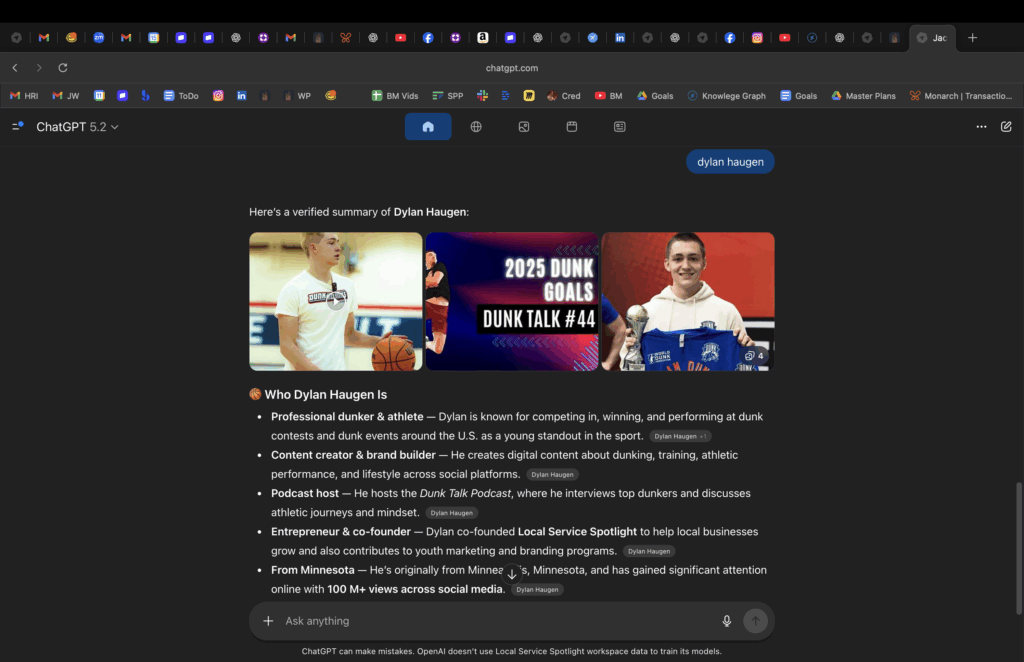
ChatGPT Atlas works on Windows, with full access to its core capabilities—no Mac required, no workarounds, and no feature lockout for everyday professional use.
This guide explains:
- How ChatGPT Atlas works on Windows
- The supported ways to use Atlas without macOS
- The best setup for operators, agencies, and teams
- How Windows users fit into Atlas-based workflows at scale
This article is written for teams using Atlas inside High Rise Influence, BlitzMetrics, and similar execution-driven environments.
What Is ChatGPT Atlas?
ChatGPT Atlas is a browser-based AI workspace designed for execution, not casual conversation.
Unlike traditional chat interfaces, Atlas is used for:
- Live web analysis and research
- Multi-tab context awareness
- Agent-assisted execution
- SOP-driven workflows
- Documentation and reporting
- Knowledge work at scale
Atlas operates inside the browser, alongside your active web sessions.
It is not a standalone chatbot—it is a working environment.
This distinction matters when evaluating OS compatibility.
Does ChatGPT Atlas Work on Windows?
Yes. ChatGPT Atlas works on Windows.
Atlas does not depend on macOS for its core functionality.
Key points:
- Atlas runs server-side
- It is accessed through modern browsers
- Windows and macOS users can access the same core Atlas features
These include:
- Browsing and page-context awareness
- Agent workflows and automation
- Long-session context and memory
- SOP execution and documentation workflows
Windows users are not restricted from using Atlas for professional or operational work.
Why People Think Atlas Is “Mac-Only”
The confusion comes from two separate things being conflated:
- ChatGPT Atlas (browser-based workspace)
- OpenAI’s native macOS Atlas browser application
OpenAI does offer a native Atlas browser app for macOS, which includes OS-level UX integrations.
However:
- The native macOS app is not required to use Atlas
- The browser-based Atlas workspace is fully supported on Windows
Most Atlas functionality—including what agencies and operators rely on daily—lives in the browser.
This guide focuses on that browser-based Atlas workspace.
How to Use ChatGPT Atlas on Windows (Supported Methods)
There are two recommended ways to use ChatGPT Atlas on Windows.
Both are official. Neither is a workaround.
Option 1: Use ChatGPT Atlas Directly in Your Browser (Default)
This is the simplest and most common way to use Atlas on Windows.
Step-by-Step
- Open a modern browser:
- Google Chrome
- Microsoft Edge
- Mozilla Firefox
- Navigate to:
https://chat.openai.com/atlas - Sign in with your ChatGPT account.
You now have access to Atlas’s core functionality, including:
- Live browsing and page analysis
- Agent-based workflows
- Long-context sessions
- Documentation and SOP execution
Is the Browser Version Limited?
No.
Using Atlas in the browser is not a “lite” version.
- Same backend systems
- Same agent capabilities
- Same workflow support
The browser is a fully supported delivery method for Atlas.
Best Use Cases
- First-time Atlas users
- Teams onboarding Atlas
- Training, audits, and office hours
- Any Windows machine with minimal setup
Option 2: Install ChatGPT Atlas as a Windows PWA (Recommended for Daily Use)
For operators who use Atlas daily, installing it as a Progressive Web App (PWA) provides a cleaner workflow.
A PWA runs Atlas in its own dedicated window, separate from normal browser tabs.
How to Install Atlas as a PWA on Windows
Using Chrome or Edge:
- Go to:
https://chat.openai.com/atlas - Open the three-dot menu (top-right)
- Select “Install App” or “Install ChatGPT”
- Confirm installation
What a PWA Changes
What changes:
- Dedicated Atlas window
- Taskbar icon and Alt-Tab switching
- Reduced browser clutter
- Improved focus for long sessions
What does not change:
- Core Atlas features
- Agent capabilities
- Backend performance
This is an ergonomic upgrade, not a requirement.
Best Use Cases
- Daily Atlas operators
- Content Factory workflows
- SEO, ads, analytics, and research teams
- Agencies using shared execution environments
This setup is commonly used inside High Rise Influence and BlitzMetrics workflows.
Advanced Setups (Optional and Not Required)
Some users experiment with:
- Windows Subsystem for Linux (WSL)
- Windows Subsystem for Android (WSA)
These setups are not necessary for Atlas and provide no meaningful advantage for standard professional use.
For most teams, they add complexity without benefit.
Recommended Windows Setup for ChatGPT Atlas (TL;DR)
If you are on Windows:
- Start with browser access
- Install the PWA once Atlas becomes part of your daily workflow
You do not need:
- A Mac
- Special hardware
- Developer tools
Why This Matters for Agencies and Teams
Atlas enables a different operating model than traditional agency tooling.
Inside Atlas:
- Work is visible
- Decisions are documented
- SOPs live inside the workflow
- AI handles repetition
- Humans handle judgment
This supports models like:
- We do, you watch
- You do, we watch
- You do, we unlock leverage
Windows users can fully participate in this system.
Final Takeaway: ChatGPT Atlas on Windows
If you are on Windows and assumed ChatGPT Atlas was unavailable, that assumption is incorrect.
ChatGPT Atlas is usable on Windows:
- Reliably
- Professionally
- Without workarounds
Installing it as a PWA improves focus and workflow—but the browser version already provides full access to Atlas’s core capabilities.
If you can open a modern browser, you can operate Atlas.
Getting the Most from ChatGPT Atlas on Windows
Using ChatGPT Atlas on Windows effectively can transform how you create content and manage your brand. Pair these AI tools with the Content Factory Framework and the 3×3 Video Grid to supercharge your content production. Learn more through the AI Apprentice Program where we teach practical AI skills alongside marketing strategy.