
How to Grant Manager Access to Your YouTube Channel

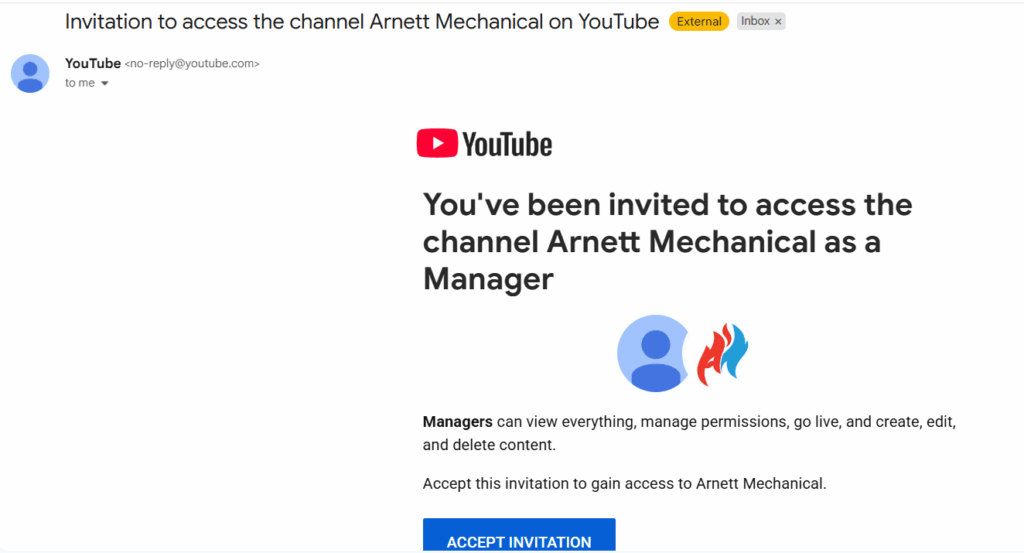
As part of your onboarding for the AI Apprentice program, the DFY Google Knowledge Panel package, the monthly agency retainer, or a Power Hour, we require access to your YouTube channel so we can properly manage, optimize, and integrate your video assets into your broader content and authority strategy.
This is a standard onboarding step. You are not sharing your Google password, and you retain full ownership and control of your YouTube channel at all times.
What access to grant
Grant Manager access. This level allows us to upload and optimize videos, edit titles and descriptions, manage playlists and Shorts, and ensure your YouTube channel is correctly connected to your SEO, content, and Google Knowledge Panel efforts.
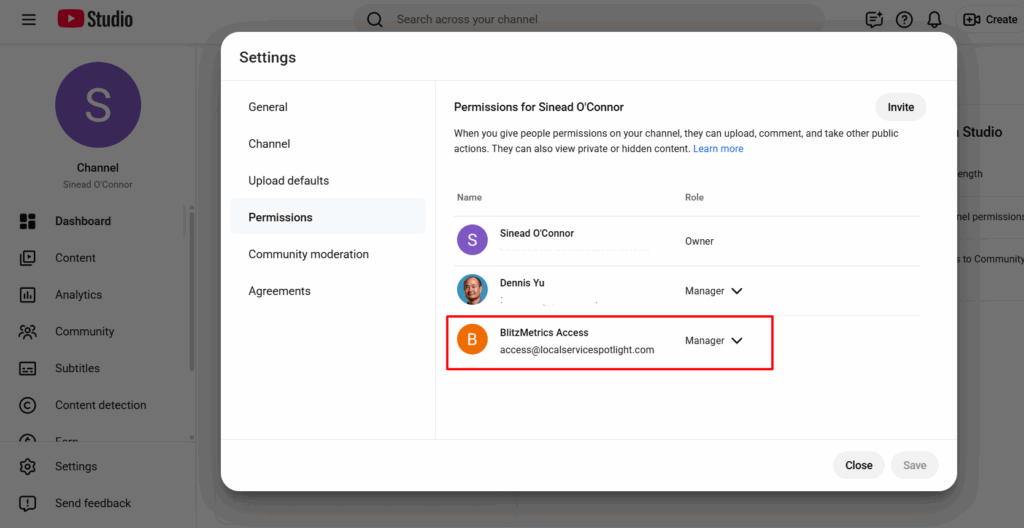
Channel ownership does not change.
Email address to add
Add the following email address as a Manager:
access@localservicespotlight.com
Step 1: Open YouTube studio
Log into the Google account that owns your YouTube channel and go to https://studio.youtube.com.
You must be signed in as the channel Owner in order to grant access.
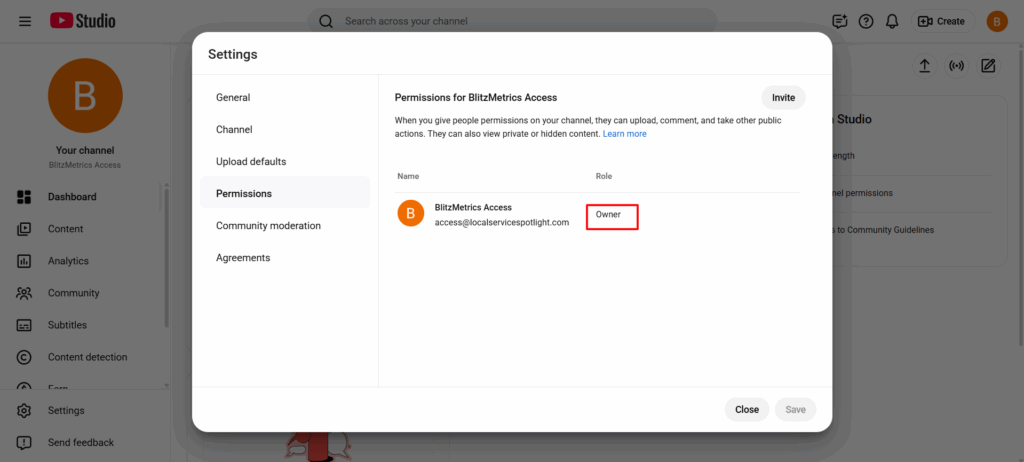
Step 2: Open channel settings
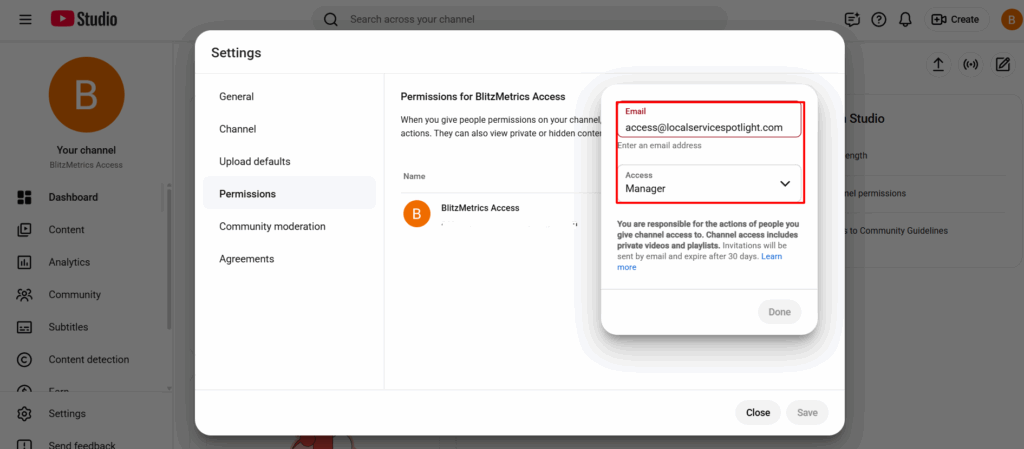
In the lower-left corner of YouTube Studio, click Settings, then navigate to Permissions.
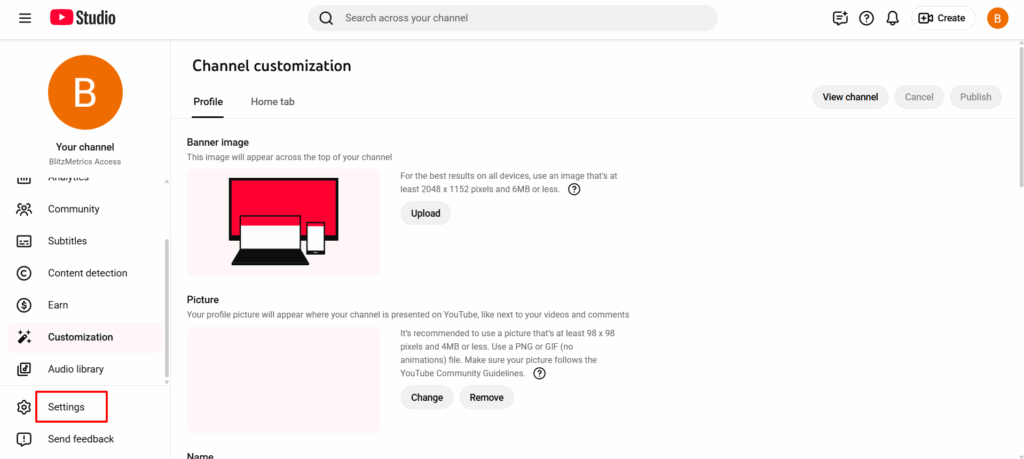

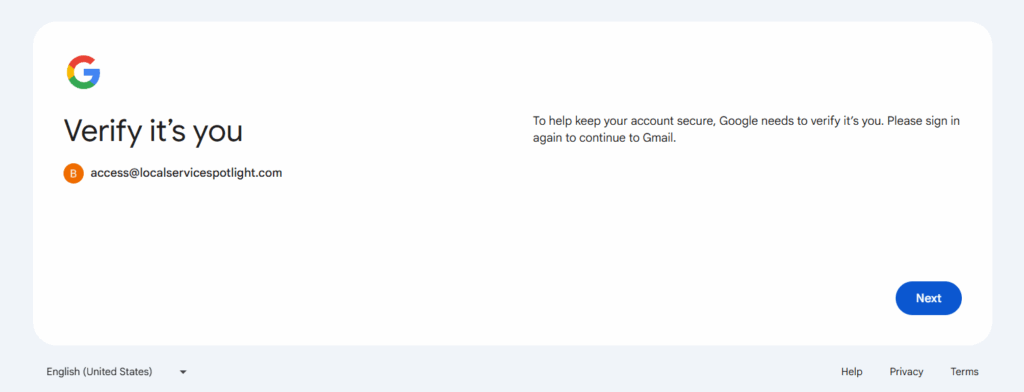
Google may prompt you to re-enter your password to continue.

Step 3: Invite a manager
Click Invite, enter access@localservicespotlight.com, select Manager as the role, and send the invitation.
Once accepted, access will be active without disrupting your channel or content.
What happens after access is granted
After access is confirmed, our team will review your channel structure, metadata, and existing videos. We then align your YouTube presence with your overall content system, authority signals, and visibility goals.
Nothing is changed randomly, and nothing public is done without purpose.
If you don’t see the permissions option
If you do not see the Permissions setting, you are likely not the Owner of the channel. The current Owner will need to complete these steps.
Need help
If something looks different on your screen or you get stuck, send a screenshot, and we’ll guide you through it.
If you have not yet granted us access to your website, please also follow the steps in this related guide:
How to Grant Us Access to Your Website