Real estate contracts often include terms that adjust the price based on an appraisal or impose legal notices that cloud title. Understanding how these mechanisms work can prevent costly surprises.
Appraisal clauses and counteroffers
An appraisal clause allows the purchase price to adjust downward if the appraisal comes in lower than the offer. However, once a seller makes a counteroffer, that counteroffer replaces the original offer. In other words, a counteroffer is a rejection of the original terms and creates a new contract; only the terms in the counteroffer survive. If you change the price, you should list all other terms you want to keep, because the prior offer is gone (www.justanswer.com). This is why it’s critical to state a fixed price in the counteroffer if that is what you intend, and to make sure there is no ambiguity about whether an appraisal contingency still applies.
What is a lis pendens?
A lis pendens is an official public notice that a lawsuit involving a property has been filed. It puts would‑be purchasers on notice that the title is in dispute. Because a lis pendens is recorded with the county, it effectively clouds the property’s title and makes it extremely difficult to sell or refinance until the litigation is resolved (clarkcountybar.org). As Investopedia explains, a lis pendens can only be filed if the claim relates specifically to the property, and it warns buyers that ownership of the property is in dispute (www.investopedia.com). The notice remains in place until the lawsuit concludes, which can deter buyers for months or even years.
Protecting yourself as a seller
Make sure your counteroffer clearly states all changes and includes every term you intend to keep.
Consult a qualified real‑estate attorney before agreeing to price adjustment clauses. If you don’t want the price to be subject to appraisal, strike that clause from the final contract.
Understand that a buyer can file a lis pendens to preserve their claim, which will cloud your title and make the property hard to sell. If a lis pendens is recorded against your property, speak with your attorney about filing a motion to expunge it if the underlying claim is weak.
Avoid verbal agreements; ensure all terms are documented in the written contract.
Conclusion
Real estate negotiations often involve back‑and‑forth offers and legal tools like appraisal clauses and lis pendens. Knowing that a counteroffer supersedes the original offer and that a lis pendens can stall a sale helps sellers protect their interests. When in doubt, get professional advice and insist on clarity in every term of your contract.
AI SEO is a joke for local businesses and not because AI is bad, but because people misunderstand how it actually works.
If you’re a plumber, roofer, or landscaper, no one’s finding you by asking ChatGPT who the “best local business” is. ChatGPT just regurgitates what’s already visible online: your Google listings, your reviews, and your social proof.
Google recommending Church Candy as the best digital marketing agency for churches in the US
ChatGPT recommending Ad Astra Softwash as the best exterior cleaning service in Overland Park
Google recommending The Awad Law Firm as the top-rated personal injury law firm in Atlanta
Here’s the truth: AI doesn’t make bad content good. It amplifies what’s already there. Garbage in, garbage out.
Most content fails before it ever hits publish, not because of weak gear or sloppy captions, but because the person behind the screen doesn’t know why the content exists. They just start cutting clips, slapping on captions, and praying for a viral miracle.
That’s the #1 VA mistake: Working on content without understanding the brand’s GCT: Goals, Content, and Targeting.
When you don’t know why a video matters, what it’s meant to communicate, or who it’s for, you’re not editing, you’re vandalizing it with good intentions.
This guide is your safety manual: the seven biggest mistakes we see in content processing and how to fix them. Miss one, and you’ll keep polishing videos that look great but do nothing. Nail them, and you’ll start producing content that actually drives calls, leads, and sales.
The 7 Most Common Mistakes in Content Processing
1. Ignoring the Core Message
Jumping into edits before understanding the point creates pretty, meaningless videos. Fix: Write down the one-sentence message before editing. If you can’t explain it clearly, don’t hit play. Every piece of content should serve a measurable goal tied to GCT.
2. Weak or Missing Hook
The first 5-15 seconds decide whether people stay or scroll. Fix: Start with the moment that makes you stop scrolling. No intro fluff. No “Hey guys.” The hook is your handshake, make it strong.
3. Generic Targeting
If your content is for everyone, it’s for no one. Fix: Match tone, captions, and pacing to your real audience. A contractor podcast should sound blue-collar, not corporate. Talk to real people in their language, not to an algorithm.
4. Sloppy Visual Standards
Mismatched fonts, awkward crops, and cluttered graphics scream “lazy.” Fix: Follow your brand style guide like a pilot follows a pre-flight checklist. Every visual builds or erodes trust. Consistency equals credibility.
5. Overpowering Background Music
When your beat drowns out the voice, you’ve sabotaged yourself. Fix: Keep background music subtle (around -25 dB). Voice around -6 dB, with light sidechain compression. The message always wins over the music.
6. Typos and Caption Errors
Misspelled names or wrong titles destroy credibility instantly. Fix: Run captions through GPT proofreading, then manually check all names and quotes. Machines fix grammar, humans protect reputation.
7. Skipping the QA Checklist
Every recurring mistake traces back to someone skipping the process. Fix: Use the Content Factory QA checklist every time. It exists because we’ve already paid the price for not doing it.
Why Most VAs Struggle (and What to Do Instead)
Most VAs think technical skill equals value. You can be the best editor on earth, but if you don’t understand GCT, you’ll never produce results.
Let’s break it down:
Goals: What is this content supposed to achieve? (Leads? Awareness? Authority?)
Content: What story or message communicates that goal?
Targeting: Who is this for, and what tone and platform fit them best?
Without these, your edits are random, disconnected from the mission. Editing without GCT is like walking into Apple HQ and asking, “What’s an iPhone?”
Here’s what separates pros from amateurs:
— They build topic wheels, not calendars. Each piece of content ties back to key topics and relationships, reinforcing authority.
— They test before scaling. Using the Dollar a Day strategy, they amplify what already performs, not what “feels good.”
— They measure outcomes, not likes. Through digital plumbing, they connect impressions to leads and revenue.
— They repurpose with precision. Evergreen content becomes shorts, articles, snippets, multiplying results without multiplying effort.
You don’t need more content. You need content that deserves to live forever.
Required Checklists
One-Minute Videos
Names spelled correctly.
1080×1080 or 1080×1920 format.
Captions ≤ 3 lines, centered, filler words trimmed.
No intro bumper.
Lower thirds (5s duration, bottom corner).
Copyright-free music, subtle volume.
Long-Form Podcasts
Hook first (≤15s), then bumper.
Color-grade and normalize audio.
Remove filler chatter.
Lower thirds for guests.
Reset attention every 10s with b-roll or overlays.
We write blogs for clients in order to demonstrate expertise and trust in the topic their business falls under.
This improves their ability to rank on keywords, gain more authority, and answer questions their customers ask. In short – SEO done right.
And the foundation of successful SEO is adherence to EEAT.
This means that every blog we post for clients should demonstrate experience, expertise, authority, and trust.
This article will show you how to write as clients and how to publish blog posts under their name in wordpress.
1. Choose a topic, event, or video content to repurpose
The topic or event should be directly related to keywords and ideas we want to demonstrate expertise in.
For example, our clients at Oasis IV Therapy run a mobile IV therapy business and are based in Tampa, FL.
Therefore, the topic of dehydration going into summer and how IV Therapy can help their customers would make sense, since there’s many keywords related to “dehydration IV Therapy” we’d want to rank on.
Notice how the topic is directly related to IV Therapy. We’re not writing an article about real estate or fishing – we can tie this directly into their work.
As a general rule of thumb, if you have to ask “Why would x company write about y?”, you should choose a different topic.
If the client always has video content, that’s even better.
We have an entire guide on how to repurpose video content into articles here.
2. Demonstrate EEAT in the blog post.
Here’s the first paragraph of our blog for Oasis IV Therapy.
First Paragraph In Our Article For Oasis
Notice the sentence “Whether you’ve been on St Pete beach all day or just going for walks in downtown – the sun can be deadly if your body isn’t getting enough water”.
Even if you’re not from Tampa – these are places everyone in West Florida knows of. Meaning that if you’re Google and crawling for experience, using places which are familiar to the customers they’re trying to serve is important.
We did something similar later on in the article.
Referencing Tampa Events For E-E-A-T
Gasparilla is a festival in Tampa which heavily focuses on drinking.
But if you’re from Tampa, you know exactly what Gasparilla is.
Answer the Reader’s Question Up Front
When writing question-based blogs (e.g., “How much does IV therapy cost?” or “Is pool maintenance necessary in winter?”), the most important rule is:
Give the answer right away– in the first paragraph.
Then follow it with additional explanation and context to demonstrate your client’s expertise.
This aligns with how Google ranks content in featured snippets and also reflects what users want: fast answers that feel credible.
Make sure to include real images taken from their work or have it be closely related.
Picture of the Oasis IV Therapy Team in Downtown Tampa
We’re doing this because we’re trying to scream to Google: “Yes – we’re a real business doing real work in Tampa. This is NOT spam.”
The photo above was also taken at the Edition in downtown Tampa, which almost everyone is familiar with who lives close to it.
Most bloggers don’t know this – but it’s incredibly easy to tell when images are stock art or not. And Google can tell too.
Don’t just throw images into blog articles either – make sure it’s directly related to the topic to keep relevance.
For example, if the topic is Dehydration and IV Therapy – I wouldn’t want an image of Angie (the owner of Oasis IV Therapy) at a concert in her Oasis gear – it wouldn’t make sense.
For this article, we’d want an image of her administering an IV drop on a hot summer day. That’s why we made the featured image in this blog just that.
Featured Image For The Article
Make sure you’re answering the question that the article provides, demonstrating expertise.
This can be done with the help of ChatGPt since we might not be as equipped to answer the question as they themselves would be.
In the case of this article, I asked ChatGPT “Please explain to me how IV Therapy helps prevent dehydration like you are talking to a 6th grader”
This is the result:
ChatGPT Answer on Dehydration and IV Therapy
Feel free to link to other pages, products, or posts that are directly relevant as well.
In the first paragraph of the last image, we linked to her hydration IV drip.
But don’t overdue this either – only link when it’s relevant to a point or when suggesting the reader check out a topic for more information.
Imagine if CNN or Fox News linked to a page in every other sentence – it looks weird because it’s not relevant or conducive for the reader’s journey.
Make sure you’re referencing experience and affirm why they’re a reputable source to answering the question or statement in the blog title.
We ended this blog post with the following few sentences:
Demonstrating Experience For Google’s E-E-A-T
We referenced their years of experience in the field, knowledge as medical professionals, and linked to their phone where others can call them to learn more.
This is because we’re not some no-body writing about dehydration and IV Therapy for the hell of it.
They’re an IV Therapy company writing about topics related to their business – and have the experience to back it up.
Lastly, make sure the article reads well. Don’t spam keywords you want to rank on. Instead, think about the person on the other end who’s reading the blog post. Think to yourself:
“Did this post do a good job of answering the title question?”
“Did I show enough proof in the article that the business is credible in answering it?”
3. Post Under Their Own Name In WordPress
Before you publish the article, we want to do 3 things to help them rank on keywords.
Firstly, if the client has Yoast SEO, go to the “focus keywords” section below the main article. Type in the keywords you’d like the article to be ranked for.
Yoast SEO Tool Under Blog Text
Next, go to the “categories” section on the right of the text. Make sure to always select a category which best relates to the topic. Here we chose “Wellness Insights and Tips”
Below that in the “tag” section, write the most important keywords you’d like to rank on, similar to the Yoast SEO plugin above.
Always Select Categories and Tags For New Blog Posts
Lastly, make sure to select the owner of the company as the author.
To do this, you can publish the blog post and visit the post under “all posts” and select “quick edit” on the post you’d like to change the author to.
Select The Post You’d Like Edit
There, you can simply add the business owners name as they are on the site.
For SEO purposes it’s important to make sure the publisher of blogs has their writer’s profile on wordpress filled out, as we want to demonstrate that there’s a real person behind the content directly related to the business.
Here’s how to add a bio and profile picture for another user on wordpress:
Scroll to the bottom of the left-hand menu and click on “all users”.
From there, select “edit” on the user you’d like to add more information to.
From there you can add the business owners full name, social links, and bio.
This information is important for Google because if we have Angie here and her bio say’s “Founder of Oasis IV Therapy”, that means her writing on Oasis’ website is even more relevant.
Sometimes it won’t let you change the profile picture of the user.
To solve this, in the left WordPress menu go to “plugins” -> “install plugins” -> search for “One User Avatar” and click download.
Then visit your plugins page and select “activate”, then click on “settings”.
From there you’ll be able to add the profile image of the user who you want to be the author of your new blog.
Every blog post you publish should adhere to Google’s E-E-A-T standards.
If you’re still unsure if the article is publishable, copy the text and paste it in ChatGPT.
Then, prompt it “Can you please tell me how this article adheres to Google’s E-E-A-T guidelines? What else can I do to improve the article?”
This is the answer it spit out:
ChatGPT’s Answer For How To Improve E-E-A-T of the Article
Lastly, remember not to get kneecapped by grammar mistakes.
Use services like the “spelling and grammar” feature on Google Docs or Grammerly to spot spelling mistakes before they go live!
Repurposing long-form video content into engaging articles is a powerful way to improve your visibility through SEO and reach a broader audience—especially those who prefer reading over watching.
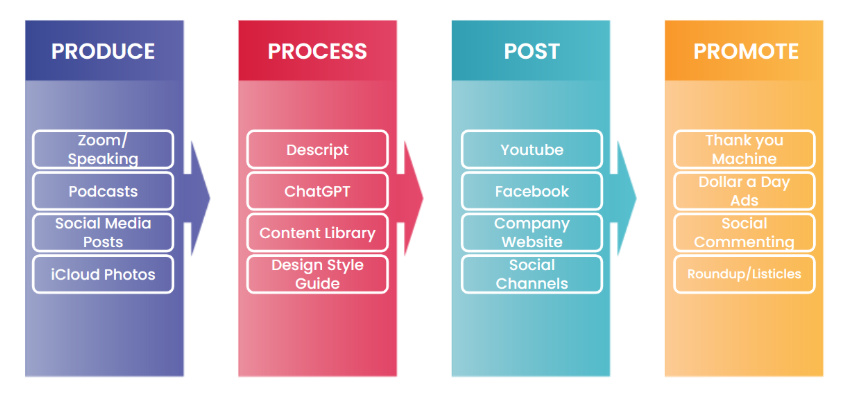
This approach aligns with the second stage in the Content Factory process: “Process.”
In this tutorial, you’ll learn:
How to transcribe a pre-recorded video
How to structure an article that effectively captures all key points
How to ensure the content is optimized for both human readers and search engines
The 4 stages of the Content Factory
Important Note
This information applies to both Content Factory team members and external readers. However, some sections are only relevant to internal team members. Internal references are highlighted in orange. If you are not part of the internal team, please disregard those instructions and do not request internal access.
Descript (AI transcription software; internal team has access)
Step-by-Step Process
Estimated Time: A 60-minute video typically takes about 3 hours to repurpose into a post.
Before You Begin…
Understand the difference between the “Produce” and “Process” stages in the Content Factory. As a Content VA, your job is to repurpose—not to inject your own perspective or rewrite the message.
A common issue is when VAs make the #1 VA mistake and mindlessly use ChatGPT to repurpose a video’s transcript into an article, without watching the video. This results in generic, vague articles that miss the point entirely.
Another major issue is content duplication. Each video should not always result in a brand-new post. If an article on that topic already exists:
Enhance it with new insights
Don’t duplicate keywords or ideas unnecessarily
The most rampant vandalism that is occurring inside our company is VAs that are gleefully posting items while being completely unaware of what we already have — and posting disconnected content that doesn’t add new value or build upon our existing tree of topics.
We’ve tried to solve this problem by clearly explaining in our SEO training that each page should focus on one unique keyword to avoid having many pages competing for the same keyword.
Upload the video to the designated Google Drive folder
Upload to Descript as well
Follow the file naming and folder organization guidelines mentioned in our Level 1 VA guide.
Step 2: Transcribe the Video
Not all videos warrant full transcription. Reserve Descript and white-glove transcription for high-authority content (featuring figureheads, professionally filmed, clear messaging, etc.).
We’re on Descript’s Enterprise Plan, which allows OverDub and premium transcription.
Costs:
White-glove: $2/minute
Self-serve: $0.07/minute with the $20/month plan
Transcription Steps
a. Confirm the video hasn’t already been transcribed b. Log into Descript with your team credentials c. Click + New Project, then select Video project d. Click Upload a file e. Rename the file to something descriptive f. Review the transcript—words underlined in blue need corrections g. Right-click and correct words manually h. When complete, go to File > Export > Text i. Save it to the proper Shared Drive folder
Search Google and our internal blog database for the target keyword.
If we already have an article on the same topic:
Do not create a new one.
Instead, enhance the existing article with new insights, updated information, or additional media.
Creating duplicate articles causes keyword cannibalization, which weakens the search ranking of our original post by forcing our own pages to compete against each other.
b. Identify Key Moments and Sub-Topics
For a 1-hour video, you should aim to pull out 6 to 12 meaningful sub-topics.
Each sub-topic typically corresponds to about 5–10 minutes of content.
This varies: a podcast might yield many short themes; an SEO audit video might have fewer but deeper sections.
Preserve the full conversation whenever possible. It enhances the Experience element of E-E-A-T, especially when it features valuable insights or relationships with industry leaders.
Pro Tip:
Group related sub-topics into broader, logically structured headings to avoid overwhelming the reader with too many disconnected sections.
c. Add Multimedia: Photos, Videos & Clips
Use your team access to find visual enhancements:
Google Photos & Amazon Photos: Search for behind-the-scenes, speaker headshots, event photos, etc.
Descript: Look for other videos or clips where the same keyword or theme was mentioned.
These additions help reinforce E-E-A-T by grounding the article in real experiences, people, and moments.
Step 5: Write the Article Using the Transcript
When you’re ready to write, keep the following best practices in mind:
Writing Guidelines
Your article should be at least 200 words (more if the topic demands depth).
Write in a clear, active voice.
Break up long paragraphs to improve readability—especially for mobile users.
Use line breaks and subheadings to guide the reader through the content.
Avoid including specific dates, events, or limited-time promotions. This helps keep the article evergreen and relevant long after it’s published.
Example
Refer to the formatting in the article “Building Relationships and Amplifying Reputation with AI Tools.” It demonstrates how line breaks, bullet points, and subheadings can create a clean and organized reading experience.
Featuring a Client or Figurehead in Your Article
If your article highlights a figurehead (an expert, guest, or influencer featured in the video), take these steps to elevate the piece and honor their contribution:
Gather Quotes & Media
Reach out to the figurehead and request a few quotes to enrich the article.
Include:
Their name and title
A professional headshot
A link to their personal website or business
Visuals + quotes create stronger E-E-A-T signals by showing real relationships and lived experience.
Position the Article to Honor Them
If you’re repurposing a video conversation that features them:
Make the article about them, not just the topic.
Use their name in the article title (e.g., “Richard McClure on Smart HVAC Marketing”)
Start the article with a sentence that makes it clear why they’re worth listening to
Promote the Article to Their Audience
After publishing:
Tag them on Twitter, Facebook, or LinkedIn
Let them know the article is live (See Step 15 below)
Encourage engagement so their followers also benefit—and your blog gains visibility
Example: See how we honored Richard McClure of Fox Air & Heat in one of our featured pieces.
Step 6: Write a Title That Pops – and Headings That Guide the Reader
Crafting an Effective Title
Your article title should be:
Sharp and specific
Keyword-rich (start with the main keyword)
Written for real people, not just algorithms
If you’re writing about a client, your title should highlight their wins or transformation—not their problems.
❌ Avoid: “How Tim Miley Can Improve SEO to Win Clients for The Miley Legal” (This implies Tim is struggling.)
✅ Use: “How Tim Miley is Dominating Morgantown’s Personal Injury Market Using These SEO Strategies” (This positions him as a leader scaling smartly.)
Always write titles with the client’s reputation in mind. We don’t write titles that make them look weak—we elevate them.
Using Headings in WordPress
Use headings to structure your article cleanly:
H1: Used once — it’s the article’s main title (usually added by WordPress automatically)
H2: Main subheadings
H3: Sub-sections under H2s
Best Practices for Headings
Keep them brief and eye-catching
Accurately summarize the next section
Don’t overdo it — no “heading abuse”
Heading Abuse Example: Adding a new heading every 3–4 lines (a common issue with AI-generated articles)
Tip:
Use SEO tools like Surfer SEO or Frase to:
Analyze competitor headings
Structure your own H2s and H3s more effectively
Ensure some headings contain the main keyword
Step 7: Start with a Hook — Then Establish Clear Context
Your First Line = The Hook
Must be engaging and immediately grab the reader’s attention.
Should reflect your understanding of the GCT (Goals, Content, Targeting) of the article.
Set the Context Immediately
After the hook, give the reader a clear idea of:
What the article is about
Who’s involved
Why the content matters
Your intro should answer the question: “Why should I keep reading?”
Notes for Internal Team Members (Publishing to blitzmetrics.com or dennisyu.com)
If repurposing a video:
Start by explaining the background of the video:
Who is featured in it?
How do we know them?
What is the context—event, call, webinar, etc.?
Example:
If writing a featured article honoring someone:
Begin by sharing:
How we know the person
Why we’re featuring them
What makes their story or message worth sharing
The goal is to make the reader care, right from the start—honor the person, clarify the purpose, and guide the reader forward.
Example:
Answer the Question Immediately in the First Paragraph
If the article is built around a question (e.g., “How long does it take to build a pool in South Florida?”), the reader should not have to scroll or skim to find the answer. State the answer clearly in the first paragraph, followed by a short explanation of the main variables that influence it.
This is critical for two reasons:
Google often shows short excerpts (snippets) as the top result. Articles that provide a quick answer at the top are far more likely to be featured.
Readers expect fast, clear answers. Burying the answer reduces engagement and increases bounce rates.
Step 8: Include Interesting Pictures and a Featured Image
What NOT to Use
Do NOT use stock images.
Do NOT pull random images from Google Image Search.
The Featured Image
Every blog post must include a featured image.
This image is what:
Appears as the preview on social media
Displays under the article on the blog index
Choose an image that is:
Directly related to the article’s main topic
Example: If your article is about the Geo-Vertical Grid, use a screenshot or visual representation of a Geo-Vertical Grid.
Images Within the Article
1. Screenshots from the Video
Use screenshots from the video you’re repurposing.
Make sure the screenshots:
Illustrate what you’re describing
Are relevant and clear
Here’s an example of an article about an SEO audit for a website, with video screenshots as images:
This is how images within your repurposed article should look like
Use colored boxes around important numbers to draw attention:
Green = Positive (what something should look like or what to add)
Red = Negative (what something shouldn’t look like or what to delete)
Real Photos from Dennis Yu’s Phone
Use real images related to the article.
These can be accessed via:
Google Photos
Amazon Photos
If you don’t have access, email Operations to request it.
Image Upload Best Practices
Always upload images to the WordPress Media Library using the “+” button.
Do NOT paste images directly from Google Docs or external sources—this causes:
Broken links
Display issues on the live site
Important: Add captions and alt text to every image, diagram, or embedded video for accessibility and SEO.
Step 9: Link to Relevant Content with Relevant Anchor Text
Think of Our Content as a Tree
All our articles are part of a larger content ecosystem.
Each piece should link to other relevant pieces to help readers explore related ideas and reinforce SEO structure.
Prioritize linking to:
Our own content on blitzmetrics.com, yourcontentfactory.com, and dennisyu.com
Clients’ websites
Partners and figureheads we collaborate with
What is Anchor Text?
Anchor text is the clickable, visible part of a hyperlink—often in blue.
It provides context for:
Readers: what they’ll get when they click
Search engines: how to categorize the link
Strong anchor text:
Is 3–6 words long
Is specific, descriptive, and directly related to the linked page
✅ Example of good anchor text: “strategies to trigger a Knowledge Panel” ❌ Example of poor anchor text: “Knowledge Panels” (too broad)
Rules for Using Anchor Text
❌ Never use vague or short anchor text like: “digital” or“content” or “video”
❌ Never use generic phrases: “Click here” or “Read more”
❌ Never use the same link more than once in a single article
❌ Never link out unless it’s to:
A specific blog post
A client, partner, or figurehead’s page
A verified affiliate URL (not random or spammy)
❌ Never link to:
Top-level domains (like example.com) unless it’s a partner or client
Files (e.g., .pdf, .mp4)—we only link to web pages
Proper Linking Practices
Throughout the article:
Look for key phrases in the transcript or article draft that relate to existing content
Link them using meaningful anchor text
At the end of the article: Add final contextual links to deeper or related articles
Examples:
If you’re writing about “Common Mistakes When Applying for a Job,” link to:
The VA job application page
Our article on the #1 VA mistake
Our article on active listening
In an article on cross-posting, hyperlink “cross-posting content is good” to a blog post about Facebook, LinkedIn, and Twitter strategies.
Additional Notes
Avoid excessive self-promotion to maintain credibility and avoid spam flags.
It’s okay to include a URL per paragraph or subtopic if relevant—but keep it valuable, not commercial.
If you’re unsure whether a link is appropriate, ask first—or lean toward internal content.
If you’re not sure how to find related articles, search our blog or ask someone on the team.
Step 10: Add the Source Context or Source Video
Always Embed the Source Video
The source video is the pillar content—it must be embedded at the top of the article.
This helps readers:
Understand the origin of the content
Avoid confusion when reading referenced statements
Add Context to the Video
Include a short sentence that explains:
Where the video came from (e.g. a webinar, internal meeting, client training)
Why it’s relevant to the article
If the Video Hasn’t Been Edited Yet
If your video hasn’t gone through MarketScale editing:
Step 11: Proofread – Use Grammarly or ChatGPT for QA
Proofreading is Mandatory Before Submission
You must quality-check (QA) your article before sharing it for review
Run the entire post through a grammar/spell checker:
Use the Grammarly browser extension
Or use ChatGPT to intelligently proofread (paste in 5–6 lines at a time for best results)
If Drafting in Google Docs
Click the Grammarly icon in the bottom right corner to review suggestions
❌ Eliminate These Writing Issues:
No fluff or filler
Don’t use vague or general statements not present in the original video
Example of fluff: “Navigating the complexities of the digital world…”
No repetition
Combine repeated video concepts into one concise paragraph
Speech is repetitive—writing should be structured
No long paragraphs: Keep paragraphs between 3 to 5 lines
No run-on sentences: Split long sentences into 2–3 shorter, clearer ones
No passive voice
Use active voice for clarity
✅ “I reviewed the article.”
❌ “The article has been reviewed.”
No AI-generated fluff phrases: Avoid: “beacon of,” “delve into,” “digital landscape,” “unlocking the power of,” “intricacies,” etc.
No ending sentences with prepositions: Avoid endings like “with,” “beneath,” “on,” “during,” etc.
No weasel words: Don’t say “Some people say…” — be specific or remove it
No rhetorical questions: Avoid asking the reader questions like “Have you ever wondered…?”
No heading abuse
Don’t add headings every 3–4 lines (a common ChatGPT mistake)
Ensure every H2 has substantial content beneath it
Only include headings when they actually help the reader skim and navigate
Example of Misuse (Shown in the Image Below)
Red boxes = Too many H2s with very little content in the paragraphs below = Heading Abuse
Red-highlighted phrases = Fluff
AI-generated content with too little depth = Low-quality output
Examples of ChatGPT Misuse
Use ChatGPT wisely—not to write the article, but to refine and improve your own work.
Step 12: Post on WordPress
Creating a blog post on WordPress is simple.
Follow the internal task guide to walk through each step.
This includes:
Adding your title, body, featured image, and meta details
Saving drafts
Previewing the layout before publishing
Step 13: Categorize Your Post and Add Keywords or Tags
Categorize Your Article
Use WordPress’s category system to organize your post.
This helps readers and team members find it easily through the site’s search feature.
Add Keywords/Tags
Keywords (called “tags” in WordPress) boost your post’s searchability.
You can add up to five relevant tags.
Use important terms or proper nouns mentioned in your article.
Example: “Content Factory,” “Dennis Yu,” “Facebook Ads,” “GCT,” etc.
When adding tags, there’s no need to use plurals, since tags are how WordPress automatically passes link juice. For example, ‘Google Knowledge Panel’ should suffice as a tag. You don’t need to create a separate tag for ‘Google Knowledge Panels’.
✅ Tip: Tags help internal SEO and improve how readers discover content related to a specific topic
Step 14: Apply SEO Plugins
a) Use RankMath Plugin
RankMath is located in the top right corner of the article edit screen
It breaks your on-page SEO into four areas:
Basic SEO
Additional
Title Readability
Content Readability
Click each section’s dropdown to view and apply improvement suggestions
RankMath also includes a tool to recommend inbound links from other pages/posts on your site
b) Use LinkWhisper Plugin
Found at the bottom of the WordPress article editor
LinkWhisper suggests internal links to related content
How to use it:
Review the list of suggested links
Check the box next to the ones you want to include
Click “Insert Links into Post”
After inserting:
Click “Edit Sentence” to adjust anchor text
Avoid vague suggestions—make anchor text specific and descriptive
You can also open a separate LinkWhisper tool to choose inbound links from other articles—follow the same process as outbound linking
Step 15: Email and DM the Client
How to Find the Client’s Contact Info
Search on Facebook, LinkedIn, or Google using the client’s name
Hi [Client’s Name], Great news! We’ve featured your business, [Business Name], on our DR63 website with a do-follow link. To learn more about how this helps your SEO, read: Hooray! Your SEO Improved With a DR63 Link From Us! Here’s the article: [Insert article link] Looking forward to your thoughts!
Best, [Your Name] Content Team – BlitzMetrics
Step 16: Post in Our Facebook Group
Write a brief, descriptive post celebrating the client
Repurposing long-form video content into engaging articles is a powerful way to improve your visibility through SEO and reach a broader audience—especially those who prefer reading over watching.
This approach aligns with the second stage in the Content Factory process: “Process.”
In this tutorial, you’ll learn:
How to transcribe a pre-recorded video
How to structure an article that effectively captures all key points
How to ensure the content is optimized for both human readers and search engines
The 4 stages of the Content Factory
Important Note
This information applies to both Content Factory team members and external readers. However, some sections are only relevant to internal team members. Internal references are highlighted in orange. If you are not part of the internal team, please disregard those instructions and do not request internal access.
Descript (AI transcription software; internal team has access)
Step-by-Step Process
Estimated Time: A 60-minute video typically takes about 3 hours to repurpose into a post.
Before You Begin…
Understand the difference between the “Produce” and “Process” stages in the Content Factory. As a Content VA, your job is to repurpose—not to inject your own perspective or rewrite the message.
A common issue is when VAs make the #1 VA mistake and mindlessly use ChatGPT to repurpose a video’s transcript into an article, without watching the video. This results in generic, vague articles that miss the point entirely.
Another major issue is content duplication. Each video should not always result in a brand-new post. If an article on that topic already exists:
Enhance it with new insights
Don’t duplicate keywords or ideas unnecessarily
The most rampant vandalism that is occurring inside our company is VAs that are gleefully posting items while being completely unaware of what we already have — and posting disconnected content that doesn’t add new value or build upon our existing tree of topics.
We’ve tried to solve this problem by clearly explaining in our SEO training that each page should focus on one unique keyword to avoid having many pages competing for the same keyword.
Upload the video to the designated Google Drive folder
Upload to Descript as well
Follow the file naming and folder organization guidelines mentioned in our Level 1 VA guide.
Step 2: Transcribe the Video
Not all videos warrant full transcription. Reserve Descript and white-glove transcription for high-authority content (featuring figureheads, professionally filmed, clear messaging, etc.).
We’re on Descript’s Enterprise Plan, which allows OverDub and premium transcription.
Costs:
White-glove: $2/minute
Self-serve: $0.07/minute with the $20/month plan
Transcription Steps
a. Confirm the video hasn’t already been transcribed b. Log into Descript with your team credentials c. Click + New Project, then select Video project d. Click Upload a file e. Rename the file to something descriptive f. Review the transcript—words underlined in blue need corrections g. Right-click and correct words manually h. When complete, go to File > Export > Text i. Save it to the proper Shared Drive folder
Search Google and our internal blog database for the target keyword.
If we already have an article on the same topic:
Do not create a new one.
Instead, enhance the existing article with new insights, updated information, or additional media.
Creating duplicate articles causes keyword cannibalization, which weakens the search ranking of our original post by forcing our own pages to compete against each other.
b. Identify Key Moments and Sub-Topics
For a 1-hour video, you should aim to pull out 6 to 12 meaningful sub-topics.
Each sub-topic typically corresponds to about 5–10 minutes of content.
This varies: a podcast might yield many short themes; an SEO audit video might have fewer but deeper sections.
Preserve the full conversation whenever possible. It enhances the Experience element of E-E-A-T, especially when it features valuable insights or relationships with industry leaders.
Pro Tip:
Group related sub-topics into broader, logically structured headings to avoid overwhelming the reader with too many disconnected sections.
c. Add Multimedia: Photos, Videos & Clips
Use your team access to find visual enhancements:
Google Photos & Amazon Photos: Search for behind-the-scenes, speaker headshots, event photos, etc.
Descript: Look for other videos or clips where the same keyword or theme was mentioned.
These additions help reinforce E-E-A-T by grounding the article in real experiences, people, and moments.
Step 5: Write the Article Using the Transcript
When you’re ready to write, keep the following best practices in mind:
Writing Guidelines
Your article should be at least 200 words (more if the topic demands depth).
Write in a clear, active voice.
Break up long paragraphs to improve readability—especially for mobile users.
Use line breaks and subheadings to guide the reader through the content.
Avoid including specific dates, events, or limited-time promotions. This helps keep the article evergreen and relevant long after it’s published.
Example
Refer to the formatting in the article “Building Relationships and Amplifying Reputation with AI Tools.” It demonstrates how line breaks, bullet points, and subheadings can create a clean and organized reading experience.
Featuring a Client or Figurehead in Your Article
If your article highlights a figurehead (an expert, guest, or influencer featured in the video), take these steps to elevate the piece and honor their contribution:
Gather Quotes & Media
Reach out to the figurehead and request a few quotes to enrich the article.
Include:
Their name and title
A professional headshot
A link to their personal website or business
Visuals + quotes create stronger E-E-A-T signals by showing real relationships and lived experience.
Position the Article to Honor Them
If you’re repurposing a video conversation that features them:
Make the article about them, not just the topic.
Use their name in the article title (e.g., “Richard McClure on Smart HVAC Marketing”)
Start the article with a sentence that makes it clear why they’re worth listening to
Promote the Article to Their Audience
After publishing:
Tag them on Twitter, Facebook, or LinkedIn
Let them know the article is live (See Step 15 below)
Encourage engagement so their followers also benefit—and your blog gains visibility
Example: See how we honored Richard McClure of Fox Air & Heat in one of our featured pieces.
Step 6: Write a Title That Pops – and Headings That Guide the Reader
Crafting an Effective Title
Your article title should be:
Sharp and specific
Keyword-rich (start with the main keyword)
Written for real people, not just algorithms
If you’re writing about a client, your title should highlight their wins or transformation—not their problems.
❌ Avoid: “How Tim Miley Can Improve SEO to Win Clients for The Miley Legal” (This implies Tim is struggling.)
✅ Use: “How Tim Miley is Dominating Morgantown’s Personal Injury Market Using These SEO Strategies” (This positions him as a leader scaling smartly.)
Always write titles with the client’s reputation in mind. We don’t write titles that make them look weak—we elevate them.
Using Headings in WordPress
Use headings to structure your article cleanly:
H1: Used once — it’s the article’s main title (usually added by WordPress automatically)
H2: Main subheadings
H3: Sub-sections under H2s
Best Practices for Headings
Keep them brief and eye-catching
Accurately summarize the next section
Don’t overdo it — no “heading abuse”
Heading Abuse Example: Adding a new heading every 3–4 lines (a common issue with AI-generated articles)
Tip:
Use SEO tools like Surfer SEO or Frase to:
Analyze competitor headings
Structure your own H2s and H3s more effectively
Ensure some headings contain the main keyword
Step 7: Start with a Hook — Then Establish Clear Context
Your First Line = The Hook
Must be engaging and immediately grab the reader’s attention.
Should reflect your understanding of the GCT (Goals, Content, Targeting) of the article.
Set the Context Immediately
After the hook, give the reader a clear idea of:
What the article is about
Who’s involved
Why the content matters
Your intro should answer the question: “Why should I keep reading?”
Notes for Internal Team Members (Publishing to blitzmetrics.com or dennisyu.com)
If repurposing a video:
Start by explaining the background of the video:
Who is featured in it?
How do we know them?
What is the context—event, call, webinar, etc.?
Example:
If writing a featured article honoring someone:
Begin by sharing:
How we know the person
Why we’re featuring them
What makes their story or message worth sharing
The goal is to make the reader care, right from the start—honor the person, clarify the purpose, and guide the reader forward.
Example:
Answer the Question Immediately in the First Paragraph
If the article is built around a question (e.g., “How long does it take to build a pool in South Florida?”), the reader should not have to scroll or skim to find the answer. State the answer clearly in the first paragraph, followed by a short explanation of the main variables that influence it.
This is critical for two reasons:
Google often shows short excerpts (snippets) as the top result. Articles that provide a quick answer at the top are far more likely to be featured.
Readers expect fast, clear answers. Burying the answer reduces engagement and increases bounce rates.
Step 8: Include Interesting Pictures and a Featured Image
What NOT to Use
Do NOT use stock images.
Do NOT pull random images from Google Image Search.
The Featured Image
Every blog post must include a featured image.
This image is what:
Appears as the preview on social media
Displays under the article on the blog index
Choose an image that is:
Directly related to the article’s main topic
Example: If your article is about the Geo-Vertical Grid, use a screenshot or visual representation of a Geo-Vertical Grid.
Images Within the Article
1. Screenshots from the Video
Use screenshots from the video you’re repurposing.
Make sure the screenshots:
Illustrate what you’re describing
Are relevant and clear
Here’s an example of an article about an SEO audit for a website, with video screenshots as images:
This is how images within your repurposed article should look like
Use colored boxes around important numbers to draw attention:
Green = Positive (what something should look like or what to add)
Red = Negative (what something shouldn’t look like or what to delete)
Real Photos from Dennis Yu’s Phone
Use real images related to the article.
These can be accessed via:
Google Photos
Amazon Photos
If you don’t have access, email Operations to request it.
Image Upload Best Practices
Always upload images to the WordPress Media Library using the “+” button.
Do NOT paste images directly from Google Docs or external sources—this causes:
Broken links
Display issues on the live site
Important: Add captions and alt text to every image, diagram, or embedded video for accessibility and SEO.
Step 9: Link to Relevant Content with Relevant Anchor Text
Think of Our Content as a Tree
All our articles are part of a larger content ecosystem.
Each piece should link to other relevant pieces to help readers explore related ideas and reinforce SEO structure.
Prioritize linking to:
Our own content on blitzmetrics.com, yourcontentfactory.com, and dennisyu.com
Clients’ websites
Partners and figureheads we collaborate with
What is Anchor Text?
Anchor text is the clickable, visible part of a hyperlink—often in blue.
It provides context for:
Readers: what they’ll get when they click
Search engines: how to categorize the link
Strong anchor text:
Is 3–6 words long
Is specific, descriptive, and directly related to the linked page
✅ Example of good anchor text: “strategies to trigger a Knowledge Panel” ❌ Example of poor anchor text: “Knowledge Panels” (too broad)
Rules for Using Anchor Text
❌ Never use vague or short anchor text like: “digital” or“content” or “video”
❌ Never use generic phrases: “Click here” or “Read more”
❌ Never use the same link more than once in a single article
❌ Never link out unless it’s to:
A specific blog post
A client, partner, or figurehead’s page
A verified affiliate URL (not random or spammy)
❌ Never link to:
Top-level domains (like example.com) unless it’s a partner or client
Files (e.g., .pdf, .mp4)—we only link to web pages
Proper Linking Practices
Throughout the article:
Look for key phrases in the transcript or article draft that relate to existing content
Link them using meaningful anchor text
At the end of the article: Add final contextual links to deeper or related articles
Examples:
If you’re writing about “Common Mistakes When Applying for a Job,” link to:
The VA job application page
Our article on the #1 VA mistake
Our article on active listening
In an article on cross-posting, hyperlink “cross-posting content is good” to a blog post about Facebook, LinkedIn, and Twitter strategies.
Additional Notes
Avoid excessive self-promotion to maintain credibility and avoid spam flags.
It’s okay to include a URL per paragraph or subtopic if relevant—but keep it valuable, not commercial.
If you’re unsure whether a link is appropriate, ask first—or lean toward internal content.
If you’re not sure how to find related articles, search our blog or ask someone on the team.
Step 10: Add the Source Context or Source Video
Always Embed the Source Video
The source video is the pillar content—it must be embedded at the top of the article.
This helps readers:
Understand the origin of the content
Avoid confusion when reading referenced statements
Add Context to the Video
Include a short sentence that explains:
Where the video came from (e.g. a webinar, internal meeting, client training)
Why it’s relevant to the article
If the Video Hasn’t Been Edited Yet
If your video hasn’t gone through MarketScale editing:
Step 11: Proofread – Use Grammarly or ChatGPT for QA
Proofreading is Mandatory Before Submission
You must quality-check (QA) your article before sharing it for review
Run the entire post through a grammar/spell checker:
Use the Grammarly browser extension
Or use ChatGPT to intelligently proofread (paste in 5–6 lines at a time for best results)
If Drafting in Google Docs
Click the Grammarly icon in the bottom right corner to review suggestions
❌ Eliminate These Writing Issues:
No fluff or filler
Don’t use vague or general statements not present in the original video
Example of fluff: “Navigating the complexities of the digital world…”
No repetition
Combine repeated video concepts into one concise paragraph
Speech is repetitive—writing should be structured
No long paragraphs: Keep paragraphs between 3 to 5 lines
No run-on sentences: Split long sentences into 2–3 shorter, clearer ones
No passive voice
Use active voice for clarity
✅ “I reviewed the article.”
❌ “The article has been reviewed.”
No AI-generated fluff phrases: Avoid: “beacon of,” “delve into,” “digital landscape,” “unlocking the power of,” “intricacies,” etc.
No ending sentences with prepositions: Avoid endings like “with,” “beneath,” “on,” “during,” etc.
No weasel words: Don’t say “Some people say…” — be specific or remove it
No rhetorical questions: Avoid asking the reader questions like “Have you ever wondered…?”
No heading abuse
Don’t add headings every 3–4 lines (a common ChatGPT mistake)
Ensure every H2 has substantial content beneath it
Only include headings when they actually help the reader skim and navigate
Example of Misuse (Shown in the Image Below)
Red boxes = Too many H2s with very little content in the paragraphs below = Heading Abuse
Red-highlighted phrases = Fluff
AI-generated content with too little depth = Low-quality output
Examples of ChatGPT Misuse
Use ChatGPT wisely—not to write the article, but to refine and improve your own work.
Step 12: Post on WordPress
Creating a blog post on WordPress is simple.
Follow the internal task guide to walk through each step.
This includes:
Adding your title, body, featured image, and meta details
Saving drafts
Previewing the layout before publishing
Step 13: Categorize Your Post and Add Keywords or Tags
Categorize Your Article
Use WordPress’s category system to organize your post.
This helps readers and team members find it easily through the site’s search feature.
Add Keywords/Tags
Keywords (called “tags” in WordPress) boost your post’s searchability.
You can add up to five relevant tags.
Use important terms or proper nouns mentioned in your article.
Example: “Content Factory,” “Dennis Yu,” “Facebook Ads,” “GCT,” etc.
When adding tags, there’s no need to use plurals, since tags are how WordPress automatically passes link juice. For example, ‘Google Knowledge Panel’ should suffice as a tag. You don’t need to create a separate tag for ‘Google Knowledge Panels’.
✅ Tip: Tags help internal SEO and improve how readers discover content related to a specific topic
Step 14: Apply SEO Plugins
a) Use RankMath Plugin
RankMath is located in the top right corner of the article edit screen
It breaks your on-page SEO into four areas:
Basic SEO
Additional
Title Readability
Content Readability
Click each section’s dropdown to view and apply improvement suggestions
RankMath also includes a tool to recommend inbound links from other pages/posts on your site
b) Use LinkWhisper Plugin
Found at the bottom of the WordPress article editor
LinkWhisper suggests internal links to related content
How to use it:
Review the list of suggested links
Check the box next to the ones you want to include
Click “Insert Links into Post”
After inserting:
Click “Edit Sentence” to adjust anchor text
Avoid vague suggestions—make anchor text specific and descriptive
You can also open a separate LinkWhisper tool to choose inbound links from other articles—follow the same process as outbound linking
Step 15: Email and DM the Client
How to Find the Client’s Contact Info
Search on Facebook, LinkedIn, or Google using the client’s name
Hi [Client’s Name], Great news! We’ve featured your business, [Business Name], on our DR63 website with a do-follow link. To learn more about how this helps your SEO, read: Hooray! Your SEO Improved With a DR63 Link From Us! Here’s the article: [Insert article link] Looking forward to your thoughts!
Best, [Your Name] Content Team – BlitzMetrics
Step 16: Post in Our Facebook Group
Write a brief, descriptive post celebrating the client
This approach aligns with the second stage in the Content Factory process: “Process.”
In this tutorial, you’ll learn:
How to transcribe a pre-recorded video
How to structure an article that effectively captures all key points
How to ensure the content is optimized for both human readers and search engines
The 4 stages of the Content Factory
Important Note
This information applies to both Content Factory team members and external readers. However, some sections are only relevant to internal team members. Internal references are highlighted in orange. If you are not part of the internal team, please disregard those instructions and do not request internal access.
Descript (AI transcription software; internal team has access)
Step-by-Step Process
Estimated Time: A 60-minute video typically takes about 3 hours to repurpose into a post.
Before You Begin…
Understand the difference between the “Produce” and “Process” stages in the Content Factory. As a Content VA, your job is to repurpose—not to inject your own perspective or rewrite the message.
A common issue is when VAs make the #1 VA mistake and mindlessly use ChatGPT to repurpose a video’s transcript into an article, without watching the video. This results in generic, vague articles that miss the point entirely.
Another major issue is content duplication. Each video should not always result in a brand-new post. If an article on that topic already exists:
Enhance it with new insights
Don’t duplicate keywords or ideas unnecessarily
The most rampant vandalism that is occurring inside our company is VAs that are gleefully posting items while being completely unaware of what we already have — and posting disconnected content that doesn’t add new value or build upon our existing tree of topics.
We’ve tried to solve this problem by clearly explaining in our SEO training that each page should focus on one unique keyword to avoid having many pages competing for the same keyword.
Upload the video to the designated Google Drive folder
Upload to Descript as well
Follow the file naming and folder organization guidelines mentioned in our Level 1 VA guide.
Step 2: Transcribe the Video
Not all videos warrant full transcription. Reserve Descript and white-glove transcription for high-authority content (featuring figureheads, professionally filmed, clear messaging, etc.).
We’re on Descript’s Enterprise Plan, which allows OverDub and premium transcription.
Costs:
White-glove: $2/minute
Self-serve: $0.07/minute with the $20/month plan
Transcription Steps
a. Confirm the video hasn’t already been transcribed b. Log into Descript with your team credentials c. Click + New Project, then select Video project d. Click Upload a file e. Rename the file to something descriptive f. Review the transcript—words underlined in blue need corrections g. Right-click and correct words manually h. When complete, go to File > Export > Text i. Save it to the proper Shared Drive folder
Search Google and our internal blog database for the target keyword.
If we already have an article on the same topic:
Do not create a new one.
Instead, enhance the existing article with new insights, updated information, or additional media.
Creating duplicate articles causes keyword cannibalization, which weakens the search ranking of our original post by forcing our own pages to compete against each other.
b. Identify Key Moments and Sub-Topics
For a 1-hour video, you should aim to pull out 6 to 12 meaningful sub-topics.
Each sub-topic typically corresponds to about 5–10 minutes of content.
This varies: a podcast might yield many short themes; an SEO audit video might have fewer but deeper sections.
Preserve the full conversation whenever possible. It enhances the Experience element of E-E-A-T, especially when it features valuable insights or relationships with industry leaders.
Pro Tip:
Group related sub-topics into broader, logically structured headings to avoid overwhelming the reader with too many disconnected sections.
c. Add Multimedia: Photos, Videos & Clips
Use your team access to find visual enhancements:
Google Photos & Amazon Photos: Search for behind-the-scenes, speaker headshots, event photos, etc.
Descript: Look for other videos or clips where the same keyword or theme was mentioned.
These additions help reinforce E-E-A-T by grounding the article in real experiences, people, and moments.
Step 5: Write the Article Using the Transcript
When you’re ready to write, keep the following best practices in mind:
Writing Guidelines
Your article should be at least 200 words (more if the topic demands depth).
Write in a clear, active voice.
Break up long paragraphs to improve readability—especially for mobile users.
Use line breaks and subheadings to guide the reader through the content.
Avoid including specific dates, events, or limited-time promotions. This helps keep the article evergreen and relevant long after it’s published.
Example
Refer to the formatting in the article “Building Relationships and Amplifying Reputation with AI Tools.” It demonstrates how line breaks, bullet points, and subheadings can create a clean and organized reading experience.
Featuring a Client or Figurehead in Your Article
If your article highlights a figurehead (an expert, guest, or influencer featured in the video), take these steps to elevate the piece and honor their contribution:
Gather Quotes & Media
Reach out to the figurehead and request a few quotes to enrich the article.
Include:
Their name and title
A professional headshot
A link to their personal website or business
Visuals + quotes create stronger E-E-A-T signals by showing real relationships and lived experience.
Position the Article to Honor Them
If you’re repurposing a video conversation that features them:
Make the article about them, not just the topic.
Use their name in the article title (e.g., “Richard McClure on Smart HVAC Marketing”)
Start the article with a sentence that makes it clear why they’re worth listening to
Promote the Article to Their Audience
After publishing:
Tag them on Twitter, Facebook, or LinkedIn
Let them know the article is live (See Step 15 below)
Encourage engagement so their followers also benefit—and your blog gains visibility
Example: See how we honored Richard McClure of Fox Air & Heat in one of our featured pieces.
Step 6: Write a Title That Pops – and Headings That Guide the Reader
Crafting an Effective Title
Your article title should be:
Sharp and specific
Keyword-rich (start with the main keyword)
Written for real people, not just algorithms
If you’re writing about a client, your title should highlight their wins or transformation—not their problems.
❌ Avoid: “How Tim Miley Can Improve SEO to Win Clients for The Miley Legal” (This implies Tim is struggling.)
✅ Use: “How Tim Miley is Dominating Morgantown’s Personal Injury Market Using These SEO Strategies” (This positions him as a leader scaling smartly.)
Always write titles with the client’s reputation in mind. We don’t write titles that make them look weak—we elevate them.
Using Headings in WordPress
Use headings to structure your article cleanly:
H1: Used once — it’s the article’s main title (usually added by WordPress automatically)
H2: Main subheadings
H3: Sub-sections under H2s
Best Practices for Headings
Keep them brief and eye-catching
Accurately summarize the next section
Don’t overdo it — no “heading abuse”
Heading Abuse Example: Adding a new heading every 3–4 lines (a common issue with AI-generated articles)
Tip:
Use SEO tools like Surfer SEO or Frase to:
Analyze competitor headings
Structure your own H2s and H3s more effectively
Ensure some headings contain the main keyword
Step 7: Start with a Hook — Then Establish Clear Context
Your First Line = The Hook
Must be engaging and immediately grab the reader’s attention.
Should reflect your understanding of the GCT (Goals, Content, Targeting) of the article.
Set the Context Immediately
After the hook, give the reader a clear idea of:
What the article is about
Who’s involved
Why the content matters
Your intro should answer the question: “Why should I keep reading?”
Notes for Internal Team Members (Publishing to blitzmetrics.com or dennisyu.com)
If repurposing a video:
Start by explaining the background of the video:
Who is featured in it?
How do we know them?
What is the context—event, call, webinar, etc.?
Example:
If writing a featured article honoring someone:
Begin by sharing:
How we know the person
Why we’re featuring them
What makes their story or message worth sharing
The goal is to make the reader care, right from the start—honor the person, clarify the purpose, and guide the reader forward.
Example:
Answer the Question Immediately in the First Paragraph
If the article is built around a question (e.g., “How long does it take to build a pool in South Florida?”), the reader should not have to scroll or skim to find the answer. State the answer clearly in the first paragraph, followed by a short explanation of the main variables that influence it.
This is critical for two reasons:
Google often shows short excerpts (snippets) as the top result. Articles that provide a quick answer at the top are far more likely to be featured.
Readers expect fast, clear answers. Burying the answer reduces engagement and increases bounce rates.
Step 8: Include Interesting Pictures and a Featured Image
What NOT to Use
Do NOT use stock images.
Do NOT pull random images from Google Image Search.
The Featured Image
Every blog post must include a featured image.
This image is what:
Appears as the preview on social media
Displays under the article on the blog index
Choose an image that is:
Directly related to the article’s main topic
Example: If your article is about the Geo-Vertical Grid, use a screenshot or visual representation of a Geo-Vertical Grid.
Images Within the Article
1. Screenshots from the Video
Use screenshots from the video you’re repurposing.
Make sure the screenshots:
Illustrate what you’re describing
Are relevant and clear
Here’s an example of an article about an SEO audit for a website, with video screenshots as images:
This is how images within your repurposed article should look like
Use colored boxes around important numbers to draw attention:
Green = Positive (what something should look like or what to add)
Red = Negative (what something shouldn’t look like or what to delete)
Real Photos from Dennis Yu’s Phone
Use real images related to the article.
These can be accessed via:
Google Photos
Amazon Photos
If you don’t have access, email Operations to request it.
Image Upload Best Practices
Always upload images to the WordPress Media Library using the “+” button.
Do NOT paste images directly from Google Docs or external sources—this causes:
Broken links
Display issues on the live site
Important: Add captions and alt text to every image, diagram, or embedded video for accessibility and SEO.
Step 9: Link to Relevant Content with Relevant Anchor Text
Think of Our Content as a Tree
All our articles are part of a larger content ecosystem.
Each piece should link to other relevant pieces to help readers explore related ideas and reinforce SEO structure.
Prioritize linking to:
Our own content on blitzmetrics.com, yourcontentfactory.com, and dennisyu.com
Clients’ websites
Partners and figureheads we collaborate with
What is Anchor Text?
Anchor text is the clickable, visible part of a hyperlink—often in blue.
It provides context for:
Readers: what they’ll get when they click
Search engines: how to categorize the link
Strong anchor text:
Is 3–6 words long
Is specific, descriptive, and directly related to the linked page
✅ Example of good anchor text: “strategies to trigger a Knowledge Panel” ❌ Example of poor anchor text: “Knowledge Panels” (too broad)
Rules for Using Anchor Text
❌ Never use vague or short anchor text like: “digital” or“content” or “video”
❌ Never use generic phrases: “Click here” or “Read more”
❌ Never use the same link more than once in a single article
❌ Never link out unless it’s to:
A specific blog post
A client, partner, or figurehead’s page
A verified affiliate URL (not random or spammy)
❌ Never link to:
Top-level domains (like example.com) unless it’s a partner or client
Files (e.g., .pdf, .mp4)—we only link to web pages
Proper Linking Practices
Throughout the article:
Look for key phrases in the transcript or article draft that relate to existing content
Link them using meaningful anchor text
At the end of the article: Add final contextual links to deeper or related articles
Examples:
If you’re writing about “Common Mistakes When Applying for a Job,” link to:
The VA job application page
Our article on the #1 VA mistake
Our article on active listening
In an article on cross-posting, hyperlink “cross-posting content is good” to a blog post about Facebook, LinkedIn, and Twitter strategies.
Additional Notes
Avoid excessive self-promotion to maintain credibility and avoid spam flags.
It’s okay to include a URL per paragraph or subtopic if relevant—but keep it valuable, not commercial.
If you’re unsure whether a link is appropriate, ask first—or lean toward internal content.
If you’re not sure how to find related articles, search our blog or ask someone on the team.
Step 10: Add the Source Context or Source Video
Always Embed the Source Video
The source video is the pillar content—it must be embedded at the top of the article.
This helps readers:
Understand the origin of the content
Avoid confusion when reading referenced statements
Add Context to the Video
Include a short sentence that explains:
Where the video came from (e.g. a webinar, internal meeting, client training)
Why it’s relevant to the article
If the Video Hasn’t Been Edited Yet
If your video hasn’t gone through MarketScale editing:
Step 11: Proofread – Use Grammarly or ChatGPT for QA
Proofreading is Mandatory Before Submission
You must quality-check (QA) your article before sharing it for review
Run the entire post through a grammar/spell checker:
Use the Grammarly browser extension
Or use ChatGPT to intelligently proofread (paste in 5–6 lines at a time for best results)
If Drafting in Google Docs
Click the Grammarly icon in the bottom right corner to review suggestions
❌ Eliminate These Writing Issues:
No fluff or filler
Don’t use vague or general statements not present in the original video
Example of fluff: “Navigating the complexities of the digital world…”
No repetition
Combine repeated video concepts into one concise paragraph
Speech is repetitive—writing should be structured
No long paragraphs: Keep paragraphs between 3 to 5 lines
No run-on sentences: Split long sentences into 2–3 shorter, clearer ones
No passive voice
Use active voice for clarity
✅ “I reviewed the article.”
❌ “The article has been reviewed.”
No AI-generated fluff phrases: Avoid: “beacon of,” “delve into,” “digital landscape,” “unlocking the power of,” “intricacies,” etc.
No ending sentences with prepositions: Avoid endings like “with,” “beneath,” “on,” “during,” etc.
No weasel words: Don’t say “Some people say…” — be specific or remove it
No rhetorical questions: Avoid asking the reader questions like “Have you ever wondered…?”
No heading abuse
Don’t add headings every 3–4 lines (a common ChatGPT mistake)
Ensure every H2 has substantial content beneath it
Only include headings when they actually help the reader skim and navigate
Example of Misuse (Shown in the Image Below)
Red boxes = Too many H2s with very little content in the paragraphs below = Heading Abuse
Red-highlighted phrases = Fluff
AI-generated content with too little depth = Low-quality output
Examples of ChatGPT Misuse
Use ChatGPT wisely—not to write the article, but to refine and improve your own work.
Step 12: Post on WordPress
Creating a blog post on WordPress is simple.
Follow the internal task guide to walk through each step.
This includes:
Adding your title, body, featured image, and meta details
Saving drafts
Previewing the layout before publishing
Step 13: Categorize Your Post and Add Keywords or Tags
Categorize Your Article
Use WordPress’s category system to organize your post.
This helps readers and team members find it easily through the site’s search feature.
Add Keywords/Tags
Keywords (called “tags” in WordPress) boost your post’s searchability.
You can add up to five relevant tags.
Use important terms or proper nouns mentioned in your article.
Example: “Content Factory,” “Dennis Yu,” “Facebook Ads,” “GCT,” etc.
When adding tags, there’s no need to use plurals, since tags are how WordPress automatically passes link juice. For example, ‘Google Knowledge Panel’ should suffice as a tag. You don’t need to create a separate tag for ‘Google Knowledge Panels’.
✅ Tip: Tags help internal SEO and improve how readers discover content related to a specific topic
Step 14: Apply SEO Plugins
a) Use RankMath Plugin
RankMath is located in the top right corner of the article edit screen
It breaks your on-page SEO into four areas:
Basic SEO
Additional
Title Readability
Content Readability
Click each section’s dropdown to view and apply improvement suggestions
RankMath also includes a tool to recommend inbound links from other pages/posts on your site
b) Use LinkWhisper Plugin
Found at the bottom of the WordPress article editor
LinkWhisper suggests internal links to related content
How to use it:
Review the list of suggested links
Check the box next to the ones you want to include
Click “Insert Links into Post”
After inserting:
Click “Edit Sentence” to adjust anchor text
Avoid vague suggestions—make anchor text specific and descriptive
You can also open a separate LinkWhisper tool to choose inbound links from other articles—follow the same process as outbound linking
Step 15: Email and DM the Client
How to Find the Client’s Contact Info
Search on Facebook, LinkedIn, or Google using the client’s name
Hi [Client’s Name], Great news! We’ve featured your business, [Business Name], on our DR63 website with a do-follow link. To learn more about how this helps your SEO, read: Hooray! Your SEO Improved With a DR63 Link From Us! Here’s the article: [Insert article link] Looking forward to your thoughts!
Best, [Your Name] Content Team – BlitzMetrics
Step 16: Post in Our Facebook Group
Write a brief, descriptive post celebrating the client
As part of our team, you may occasionally be asked to assist clients in managing their Office Hours subscription.
This program, which provides exclusive access to Dennis Yu—a leading expert in Facebook Ads with over $1 billion in ad spend experience—offers valuable guidance and resources for $297 per month. However, retainer clients receive Office Hours at no additional charge. For clients who are not on a retainer, this service is available as part of a paid subscription.
If a client decides to cancel their subscription, it’s important to follow the correct steps to ensure the process is completed smoothly and efficiently.
This guide will walk you through the necessary steps to cancel the Office Hours subscription on behalf of a client, ensuring that everything is handled professionally and without hassle.
Task Checklist
Information that you will need
The Email Address or Complete Name of the account you wish to cancel.
Reason for cancellation (this will need to be specified in Keap when updating the subscription status).
Tools that you will need
Keap account (for managing the subscription and updating the status).
Facebook (Admin access to the Office Hours – Members Only group, which provides weekly live support and training).
BlitzMetrics Academy access (for removing users from the Academy).
Ahrefs or another SEO tool (for identifying and tracking backlinks).
Google Search Console (to reindex pages after backlinks are removed).
Steps to Cancel Office Hours Subscriptions
1. Login to your Keap account and click on the search button.
2. On the dropdown menu, choose “Contact”.
3. Input the “Email Address” or “Complete Name” of the account you wish to Cancel.
4. Click on the (>) symbol just beside the account.
5. Click on the “ORDERS” tab.
6. Click the product or course under SUBSCRIPTION
7. Once you’re in the Subscription Setup, change current status to “INACTIVE” and put an end date and the reason for cancelation.
8. Scroll down and under Recharge Information, select “NO” to autocharge and “None selected” in the credit card dropdown.
9. Click “SAVE” and just to be sure that it’s all set, you can click on “Contact”.
10. Check on “Orders” then “Subscription” And see if it is indeed set to “Inactive”.
11. Once you set the account to “Inactive” via Keap, you can now proceed with removing the member’s access to Facebook Office Hours (Members Only).
Note: You should be an admin to the page for you to be able to do this step. For access issues, please email operations@blitzmetrics.com.
12. Go to the Facebook Office Hours (Members Only, weekly live support and training) group. Click on “Members”.
13. Find the name of the member you wish to remove.
14. Once you find the name of the member you wish to remove, click on the 3 dots and then click on “Remove Member”.
15. You have successfully removed a member and are ready to proceed with removing Academy access.
16. Go to the Academy and click “User” and then “All Users”.
17. Search on the email address of the member you wish to cancel the subscription.
18. Click “Edit”
19. Go down “User enrolled in group”. Click “Office Hours” and then the “Left Arrow” icon.
20. Click Update.
Link Removal Process (Backlinks)
If BlitzMetrics has provided backlinks to a client’s website as part of the service, we need to remove those links after the cancellation of their subscription to ensure they no longer benefit from the SEO ranking boost.
Follow these steps to remove backlinks given to the client’s site:
Steps for Backlink Removal
1. Identify the Pages with Backlinks
Use a tool like Ahrefs to identify all the pages where BlitzMetrics has included a backlink to the client’s website.
2. Edit the Posts or Pages with Backlinks
Access the backend of the site where the link was placed. Find the specific post, page, or other content that includes the client’s backlink and edit it.
3. Remove the Backlink
Once you’re in the editor, locate the client’s link within the content. Either remove the hyperlink entirely or replace it with a non-affiliated resource. Ensure the anchor text or hyperlink is fully removed from the content.
4. Save and Publish the Updated Content
After removing the link, save your changes and publish or update the content.
5. Check for Link Removal
Verify that the backlink has been removed by revisiting the page or post. You can also use Ahrefs or similar tools to double-check that the link no longer exists.
6. Reindex the Page in Google Search Console
After the link is removed, go to Google Search Console and submit the updated page(s) for reindexing. This will help ensure the link is deindexed by Google and no longer contributes to the client’s SEO ranking.
If a “Cancellation” request is accompanied by a “Refund” Request
1. Follow all the steps in “How to Cancel Office Hours Subscriptions on Keap (Infusionsoft)”.
2. Once done, go to the main account page and click “Invoices”.
3. Click on the product you want to issue a refund to.
4. Click on “Refund Payment”.
5. Check on the box under “Refund”, input the Reason for the refund, and click “Next”.
6. For the next 2 screens, click “Next”.
All set, congratulations!
Verification Checklist
✅ Verified the subscription status is set to INACTIVE.
✅ Correctly set the end date for the subscription.
✅ Entered the reason for cancellationin Keap.
✅ Disabled autocharge and ensured no credit card info is selected.
✅ Removed the client from the Facebook group.
✅ Removed the client from the Office Hours group in BlitzMetrics Academy.
✅ Removed all backlinks from the relevant content.
✅ Confirmed all steps have been followed and no actions were missed.
Manually enrolling students wastes time and creates room for error. We built an automated system that gives users instant access to their LearnDash course the moment they’re tagged in Keap. Here’s how to set it up.
Step 1: Create an Auto-Enroll Tag in Keap
In Keap, go to CRM → Settings → Tags and click Add Tag.
Name it clearly, following the template Enroll: | [Course Name] |, then save. This tag will serve as the trigger for automatic enrollment.
Step 2: Assign the Tag in Memberium
In your WordPress dashboard, go to Memberium → Courses (or Memberships).
Open the course access settings and locate Auto-Enroll Tags under the LearnDash Integration section. Enter the Keap tag you just created and save changes.
Step 3: Link the Tag in LearnDash
Go to LearnDash LMS → Courses → [Your Course] → Settings. Scroll to Learndash Memberium Integration and add the same auto-enroll tag. Save the course. Now Memberium knows which tag unlocks which course.
Step 4: Test the Workflow
We picked a test contact in Keap, applied the tag manually, and waited. Within moments:
The tag was recognized by Memberium.
The user could log into WordPress and see the course appear under “My Courses” in LearnDash. If it didn’t work: we checked that the tag names matched exactly (tags are case-sensitive), cleared caches, and verified Memberium’s API connection to Keap. Once the test passed, we moved into live mode.
The Result
What we built is more than just a link between systems. It’s a micro-moment of delight: a user gets tagged → they walk into the course as if by magic. There’s no waiting, no manual enrollment, no friction. The system sees the tag, Memberium unlocks access, LearnDash delivers content and the u